Hindi Voice Typing: 5 Ways to Type Hindi by Speaking
Hindi voice typing made easy: set it up on Android, iPhone, Mac, Windows and Google Docs, choose Devanagari or Hinglish, and fix common errors fast.

On this page
- What is Hindi voice typing?
- The 5 ways to do Hindi voice typing (compared)
- How do I use Hindi voice typing on Android with Gboard?
- How do I type Hindi by speaking on iPhone and Mac?
- On iPhone
- On Mac
- How do I voice type in Hindi in Google Docs?
- How do I use Hindi voice typing on Windows?
- Devanagari or Hinglish: what text will you get?
- Hindi voice typing for videos and reels
- Tips for more accurate Hindi dictation
- Common mistakes and how to fix them
- Final thoughts
- Frequently asked questions
Hindi voice typing lets you speak in Hindi and see the words appear as text, so you skip the slow hunt for matras and half letters on a keyboard. You can do it on an Android phone, an iPhone, a Mac, a Windows PC or in Google Docs, all for free.
This guide shows the 5 best ways, how to set each one up, and how to fix the errors that trip up most people.
Quick answer: To use Hindi voice typing, add Hindi as a keyboard or input language, then tap the microphone and speak. On Android use Gboard, on iPhone and Mac turn on Dictation, on Windows press Windows key + H, and in Google Docs open Tools, then Voice typing. All five ways are free.
What is Hindi voice typing?
Voice typing (also called dictation or speech to text) is a feature that listens to your voice and turns each word into written text as you talk.
Most tools write Hindi in Devanagari, the script you see in Hindi newspapers. That matters, because many people chat in Hinglish, which is Hindi written in English letters. We cover that difference in its own section below.
It is handy for long WhatsApp messages, school notes, emails and reel scripts.
The 5 ways to do Hindi voice typing (compared)
First pick the method that fits your device and task. This table gives the short version.
| Method | Device | How to start | Best for | Internet needed? |
|---|---|---|---|---|
| Gboard voice typing | Android (also on iPhone) | Tap the mic on the keyboard | WhatsApp, notes, any app | Usually yes |
| Apple Dictation | iPhone, iPad, Mac | Tap the mic key or use the Dictation shortcut | Messages and notes on Apple devices | Not always on newer models |
| Google Docs voice typing | Computer browser | Tools, then Voice typing | Long documents and scripts | Yes |
| Windows voice typing | Windows 10 and 11 PC | Windows key + H | Word, email, any text box on a PC | Yes |
| Caption tool for videos | Browser or desktop app | Upload a video, pick Hindi | Turning speech in a video into text or captions | Yes |
The first four are for live speaking. The fifth is for recorded speech, such as a reel.
How do I use Hindi voice typing on Android with Gboard?
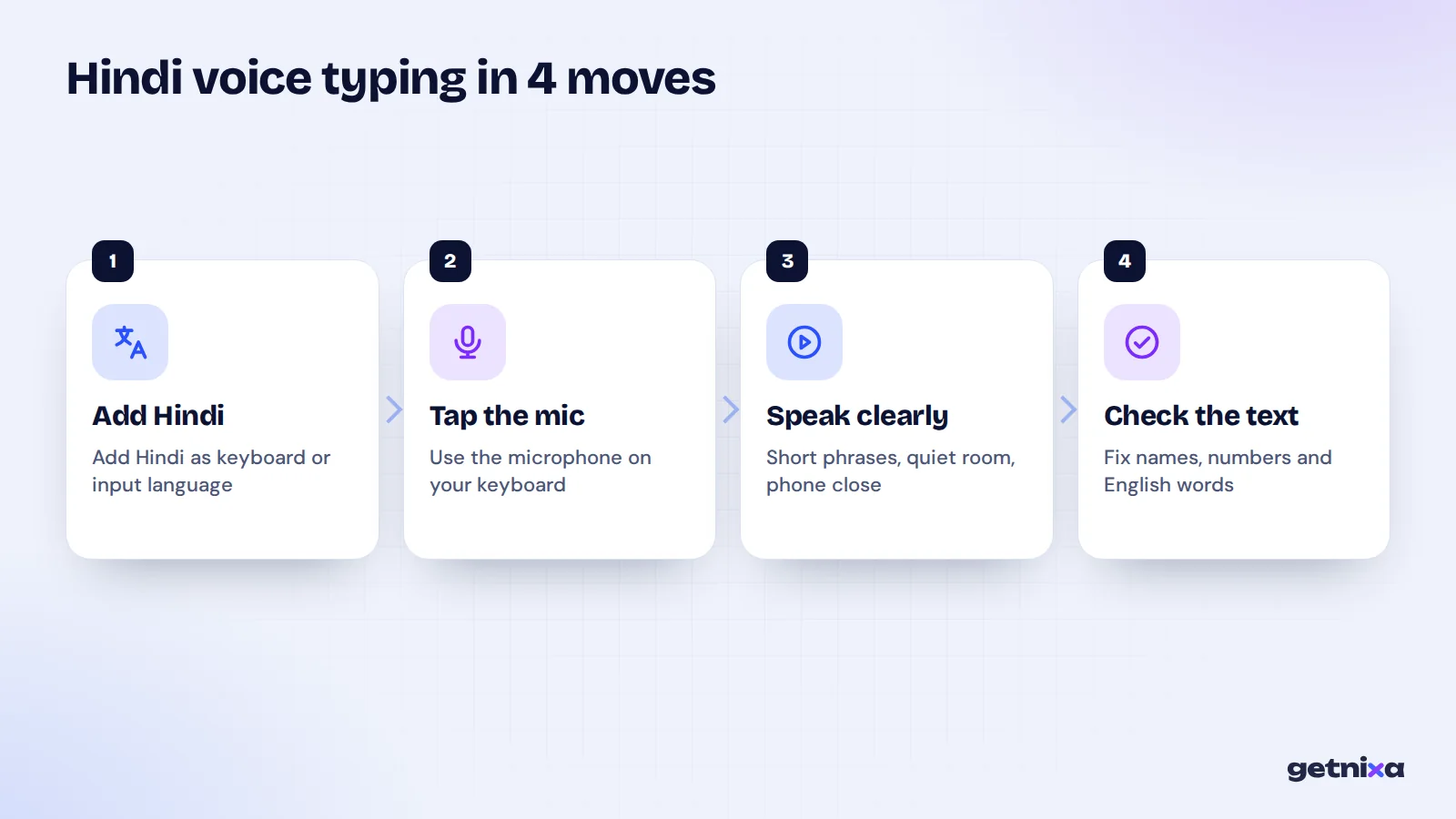
Gboard is Google’s keyboard, and it comes preinstalled on most Android phones. It listens in the language of your active keyboard, so you add Hindi first.
- Install or update Gboard. Get it from the Play Store and set it as your keyboard if your phone uses another one.
- Add Hindi. Open Gboard settings, go to Languages, tap Add keyboard and pick Hindi (हिन्दी).
- Switch to Hindi. Open any app with a text box, then tap the globe key or long press the space bar to choose the Hindi keyboard.
- Tap the microphone. It sits at the top of the keyboard. Wait until you see “Speak now”.
- Speak and check. Talk at a normal pace, then read the text and fix any wrong word.
To swap one wrong word, Google’s help page says you can touch and hold the word, tap the mic and say it again. You can read the full Gboard voice typing guide for more.
Tip: Some Pixel phones offer a newer voice typing mode. Menus can look slightly different by phone brand and Gboard version, so look for “Voice typing” inside Gboard settings if a step does not match.
How do I type Hindi by speaking on iPhone and Mac?
Apple calls this feature Dictation. Apple lists Hindi (India) as a supported Dictation language on the Mac, and iPhone works the same way through the keyboard.
On iPhone
- Turn on Dictation. Go to Settings, then General, then Keyboard, and switch on Enable Dictation.
- Add a Hindi keyboard. In the same Keyboard menu, open Keyboards, tap Add New Keyboard and choose Hindi.
- Pick Hindi and tap the mic. In any app, switch to the Hindi keyboard with the globe key, then tap the microphone key and speak.
On Mac
- Open Dictation settings. Go to System Settings, then Keyboard, and turn on Dictation.
- Add Hindi. Use the Language option in that section to add Hindi (India).
- Start speaking. Click into a text box, use the Dictation shortcut shown in settings, and talk.
On recent Apple devices, part of the work can happen on the device itself. So Dictation may keep working on a weak connection, though this depends on the model.
How do I voice type in Hindi in Google Docs?
Google Docs is the best free choice for long Hindi text, such as a video script or an essay. It runs in Chrome, Edge or Safari on a computer, and Hindi is on Google’s list of supported languages.
- Check your mic. Plug in or switch on your microphone and allow the browser to use it.
- Open a document. Start a new Google Doc in Chrome, Edge or Safari.
- Open voice typing. Click Tools, then Voice typing. A microphone box appears.
- Pick Hindi. Choose Hindi (हिन्दी) from the language option in that box.
- Click the mic and speak. Click it again when you are done.
One catch: Google’s Docs help page says voice commands, such as “select paragraph”, work only in English. Spoken punctuation may also not work in every language. So expect to add some Hindi punctuation by hand.
How do I use Hindi voice typing on Windows?
Windows 10 and 11 have dictation built in, and Microsoft lists Hindi among the supported languages. It uses whatever input language is active, so install Hindi first.
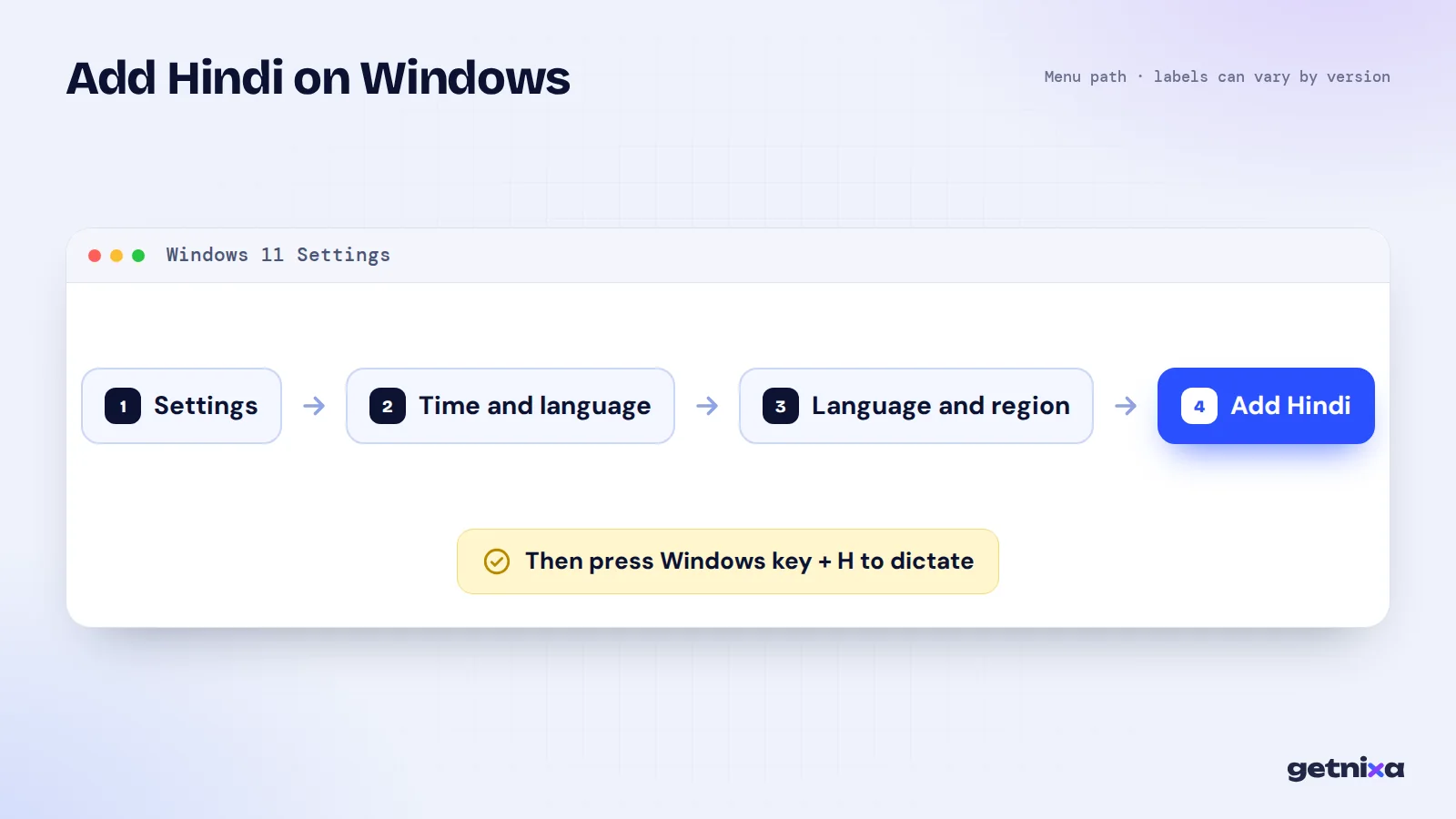
- Add Hindi. Open Settings, then Time and language, then Language and region, and add Hindi.
- Switch input to Hindi. Press Windows key + Spacebar, or use the language switcher on the taskbar.
- Start voice typing. Click into any text box and press Windows key + H.
- Turn on auto punctuation. Click the gear on the voice typing bar and switch on Automatic punctuation if you want it.
According to Microsoft’s dictation guide, Windows voice typing needs an internet connection because it uses online speech recognition.
Devanagari or Hinglish: what text will you get?
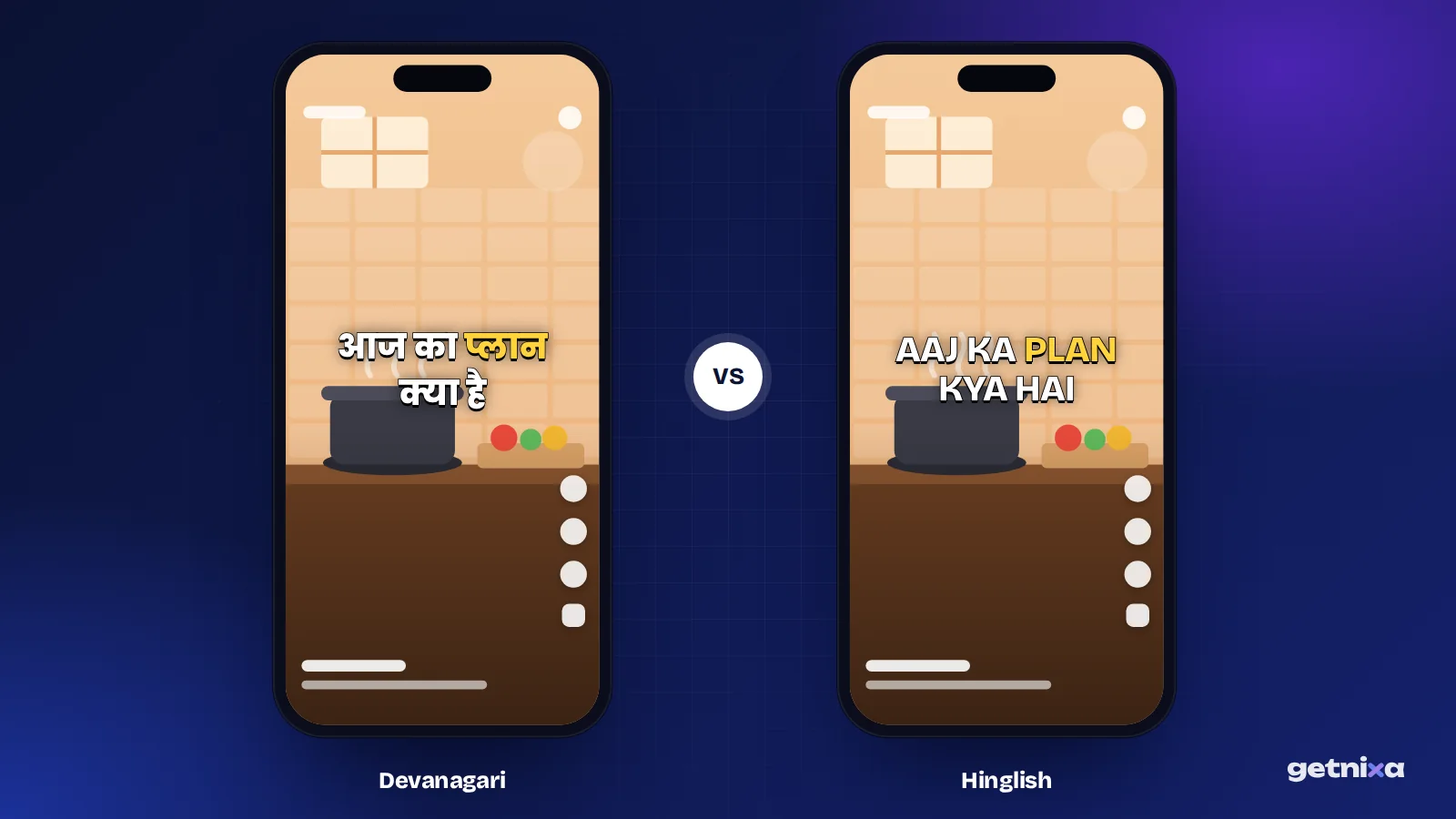
This is the part most guides skip. When you dictate in Hindi, the tools above write in Devanagari. For example, you say “aaj ka plan kya hai” and you get “आज का प्लान क्या है”.
But many Indian creators and their audiences read Hinglish more easily. Hinglish is Hindi written in English letters, like “aaj ka plan kya hai”. Phone dictation tools do not switch to English letters on their own.
Also, mixed speech causes trouble. Say “mera phone ka battery low hai” and some tools spell “battery” in Devanagari while others drop it. Here is a simple rule of thumb:
- Use Devanagari for formal writing, school work, news style posts and older audiences.
- Use Hinglish for reels, chats and young audiences who read Hindi in English letters.
- Use English when your viewers are outside India or across many language groups.
If you need Hinglish from speech, you need a tool built for it. Our page on Hinglish speech to text explains how that works.
Hindi voice typing for videos and reels
Live dictation is for speaking now. But what if the Hindi speech is already in a video? Then you want transcription, which means turning recorded speech into text with timings.
You could replay a reel and repeat each line into Gboard, but you would still have to time every line by hand. A caption tool does both jobs at once.
GetNixa is one option for this. You upload the video, pick Hindi or Hinglish as the spoken language, and the AI writes captions timed to the voice. Hindi can come out in Devanagari or in English letters. You click any word to fix it, choose a style and export an MP4 for Instagram, YouTube Shorts or WhatsApp, or an SRT file. You can read more on our Hindi speech to text page.
The Free plan covers 30 caption minutes a month for videos up to 2 minutes, with no watermark. If you are new to subtitle files, our guide on what an SRT file is explains the format.
Tips for more accurate Hindi dictation
Most errors come from the setup, not the tool. These habits help on every device:
- Speak in short phrases. Pause briefly between sentences so the tool can mark them.
- Cut background noise. Fans, traffic and TV sound get mixed into your words.
- Hold the phone close. Or use wired earphones with a mic.
- Say English words clearly. Brand names and tech terms are where Hindi dictation slips most.
- Proofread every time. Check names, numbers and words that sound alike before you send or post.
Common mistakes and how to fix them
| Problem | Likely cause | Fix |
|---|---|---|
| Text comes out in English | Keyboard or input language is still English | Switch to the Hindi keyboard before you tap the mic |
| Mic icon is missing | Voice typing is off, or mic permission is blocked | Turn on voice typing in keyboard settings and allow microphone access |
| No full stops (।) | Spoken punctuation is limited in Hindi | Add punctuation by hand, or use auto punctuation on Windows |
| English words spelt oddly | Mixed Hindi and English speech | Fix them after dictation, or use a tool made for Hinglish |
| Windows says it can’t connect | No internet connection | Reconnect, as Windows voice typing runs online |
Note: Your school or office account may have voice typing turned off by an admin. If the option is missing in Google Docs on a work account, try a personal account.
Final thoughts
For quick messages, Gboard or Apple Dictation is the fastest route to Hindi voice typing. For long text, use Google Docs or Windows voice typing on a computer. For speech that lives inside a video, use a caption tool, then see our guide on adding captions to Instagram Reels to post it. You can also explore general speech to text for other languages.
Turn Hindi speech in your videos into captions in minutes. Pick Devanagari or Hinglish, fix any word with a click, and export without a watermark.
Frequently asked questions
Is Hindi voice typing free?
Yes. Gboard, Apple Dictation, Google Docs voice typing and Windows voice typing all support Hindi at no cost. You only need a working microphone, and for most of them an internet connection. Paid tools mainly add extras such as file transcription, timed captions or exports.
Can I do Hindi voice typing without internet?
It depends on the device. Microsoft says Windows voice typing needs the internet. Google Docs runs in the browser, so it needs a connection too. Newer Apple devices can handle some dictation on the device itself, so it may work offline there. Test your own phone with mobile data off.
How do I get Hinglish instead of Devanagari from voice typing?
Standard phone and PC dictation tools write spoken Hindi in Devanagari. To get Hindi in English letters, use a tool that offers Hinglish output, or convert the text afterwards. For videos, GetNixa lets you pick Hinglish as the spoken language so captions come out in English letters.
Why does my phone write my Hindi in English?
The active keyboard or input language is still English. Dictation listens in the language you have selected, so it tries to match Hindi sounds to English words. Switch to the Hindi keyboard on your phone, or the Hindi input language on Windows, then start dictating again.
How do I add a full stop in Hindi voice typing?
Spoken punctuation commands are limited in Hindi on many tools. Google says punctuation may not work in every language. The easiest fix is to dictate, then add the purna viram (।) by hand. On Windows, you can also turn on Automatic punctuation from the voice typing settings.

Written by
GetNixa Team
The team behind GetNixa, the AI caption app for Indian creators. We write practical guides on captions, editing and growing on Instagram and YouTube.