How to Get and Copy the Transcript of a YouTube Video
Learn how to get a transcript of a YouTube video on desktop and mobile, copy it without timestamps, and what to do when a video has no captions at all.


On this page
- What is a YouTube transcript?
- How to get a transcript of a YouTube video on a computer
- How to remove the timestamps after copying
- Can you get a transcript of a YouTube video on your phone?
- How to download captions from your own channel
- Why is there no transcript on a YouTube video?
- How to get a transcript when a YouTube video has no captions
- Doing it faster in GetNixa
- Which method should you use?
- Common mistakes and fixes
- The short version
- Frequently asked questions
Need the words from a lecture, a podcast or a recipe without rewatching it? Here is how to get a transcript of a YouTube video on a computer and a phone, how to copy it cleanly, and what to do when YouTube shows no transcript at all. We also cover Hindi and Hinglish videos, where auto transcripts often go wrong.
Quick answer: On a computer, open the video, expand the description and click Show transcript. A panel opens with every caption line and its timestamp. Select the text and copy it into a document. If there is no Show transcript button, the video has no captions, so you need to transcribe the audio with a separate tool.
What is a YouTube transcript?
A YouTube transcript is the full caption text of a video, listed line by line with a timestamp for each line. It is built from the video’s captions, either ones the creator uploaded or ones YouTube generated with speech recognition.
So a transcript is only as good as the captions behind it. Uploaded captions are usually checked by a person. Auto-generated captions can miss words, names and punctuation. If you want the full background on caption types, read our guide to closed caption subtitles.
People pull transcripts for many reasons:
- Quoting a speaker word for word in an article or assignment.
- Searching a long lecture for one topic.
- Turning your own video into a blog post, a thread or show notes.
- Studying in a second language by reading along.
How to get a transcript of a YouTube video on a computer
This is the quickest method, and it is free. The steps match the YouTube Help page on viewing transcripts.
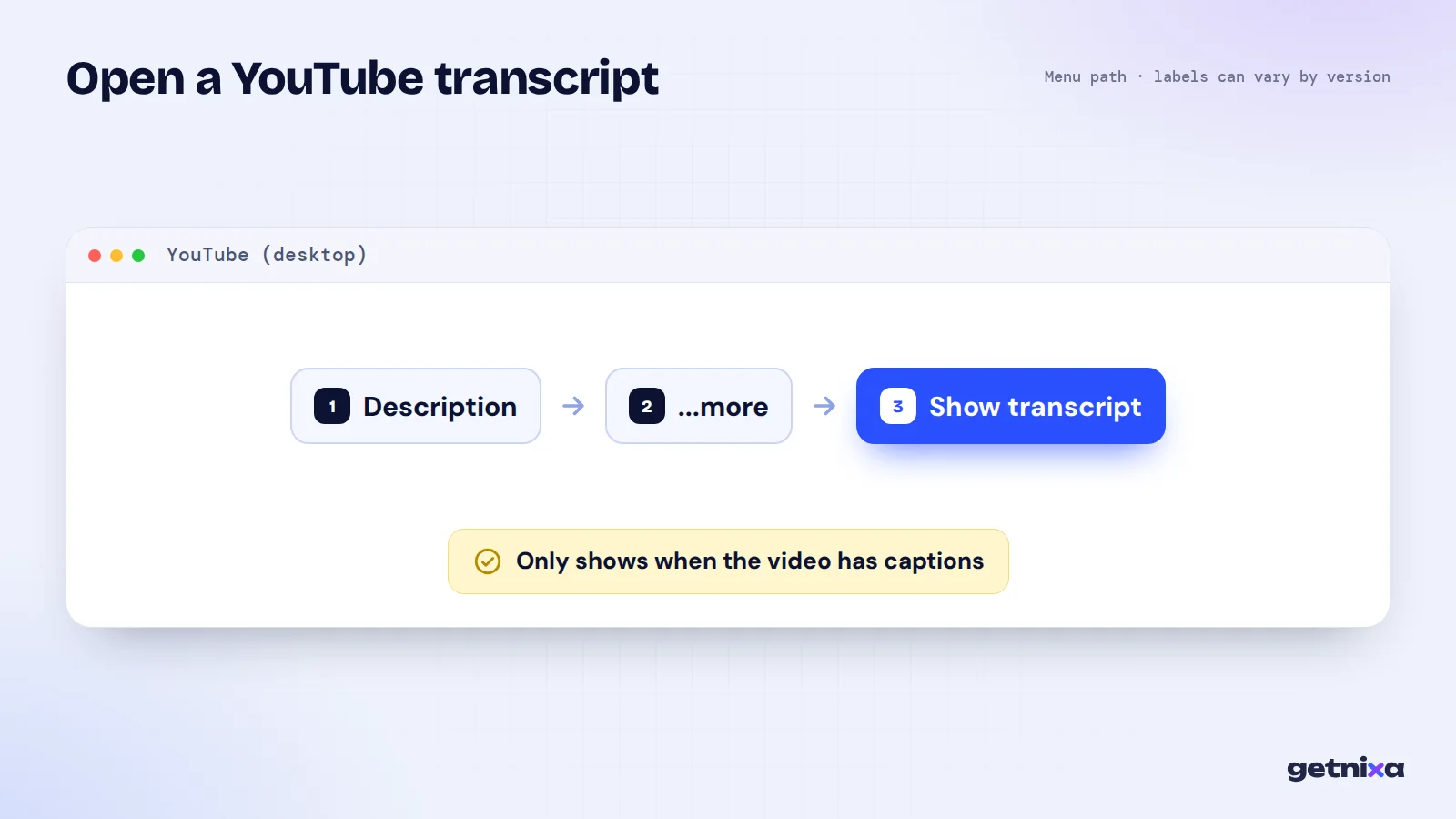
- Open the video on youtube.com. Use Chrome, Edge, Firefox or Safari.
- Expand the description. Click “…more” under the title.
- Click Show transcript. It sits near the end of the description. A panel opens beside the player.
- Jump around if needed. Click any line to skip to that moment in the clip.
- Select and copy. Click and drag from the first line to the last, then press Ctrl+C on Windows or Cmd+C on a Mac.
How to remove the timestamps after copying
The copied text usually has a timestamp before every line. That is useful for notes but messy for an article. Here is a quick clean-up that works in any text editor or Google Docs:
- Paste into a blank document. Keep the original in another tab in case you need the times later.
- Use find and replace. In Google Docs, open Find and replace, tick Match using regular expressions, and replace a pattern like
\d+:\d+with nothing. - Join the broken lines. Caption lines are short, so merge them into proper paragraphs.
- Add punctuation. Auto captions often have no full stops, so read through once and fix them.
Can you get a transcript of a YouTube video on your phone?
Often, yes. In the apps, the transcript option, when offered, also sits in the video description. The panel works like the desktop one, but copying long text on a phone is fiddly.
Note: YouTube changes its app layout often, and Google’s help page only documents the computer steps. If you cannot find the button on your phone, open the video in a mobile browser, request the desktop site, and follow the computer steps.
On a phone, the fastest way to save the text is often to share the video link to your laptop and copy it there. That also saves mobile data on long videos.
How to download captions from your own channel
If the video is yours, you can download the caption file itself, not just copy the text. Per the YouTube Help page on editing captions:
- Open YouTube Studio. Sign in with the channel account.
- Click Subtitles in the left menu. Then pick the video.
- Click Edit next to the language. This opens the caption editor for that track.
- Open the Options menu. Choose Download subtitles and save the file.
The file keeps its timings, so you can reuse it in an editor or turn it into an SRT. If SRT is new to you, our guide on what an SRT file is explains the format with a sample.
Why is there no transcript on a YouTube video?
The Show transcript button only appears when the video has captions. So if it is missing, one of these is usually the reason:
- The creator turned captions off or never added them.
- The language is not supported for auto captions. YouTube’s automatic captions help page lists the supported languages. Hindi, Bengali, Tamil, Telugu, Marathi and several other Indian languages are on it.
- The audio is hard to process. The same page says poor sound, long silence at the start, overlapping speakers or several languages at once can stop captions from being generated.
- The video is new. Auto captions can take a while to appear after upload.
That third point matters for Indian creators. A Hinglish vlog that switches languages mid-sentence may get no auto captions, or poor ones. In that case, you need to transcribe the audio yourself.
How to get a transcript when a YouTube video has no captions
When there are no captions, the only way is to turn the speech into text with a transcription tool. You have three routes:
| Method | Works without captions? | Keeps timings? | Best for |
|---|---|---|---|
| Show transcript (desktop) | No | Yes, as text | Quick quotes and notes |
| Show transcript (mobile app) | No | Yes, as text | Reading along on the go |
| Download from YouTube Studio | Only if your video has captions | Yes, as a file | Your own videos |
| Transcription tool with your file | Yes | Yes, SRT or text | Your videos, Hindi or Hinglish audio |
| Typing it out by hand | Yes | Only if you add them | Very short clips |
For a full walkthrough of tools, see how to transcribe a video to text. If the speech mixes Hindi and English, our post on Hindi speech to text explains why picking the right language setting changes everything.
Tip: Only transcribe videos you own or have permission to use. For someone else’s video, quote short parts with credit and a link, rather than republishing the whole text.
Doing it faster in GetNixa
If the video is yours and you have the file, GetNixa can produce the text for you. Upload the video, pick the spoken language from 30 options including Hindi, Hinglish, Tamil and Bengali, and the AI writes captions timed to the voice. Click any word to fix it.
Then export an SRT file, which every plan includes, or a burned-in MP4. Plain transcripts are part of the Creator plan and above. Hindi can come out in Devanagari or in English letters, and any language can be translated to English. You can start with the video to text tool, use the audio to text tool for podcasts and voice notes, or try the YouTube subtitle generator to make captions you can upload back to your channel.

Which method should you use?
- Use Show transcript if you just need a quote or notes from someone else’s video and it has captions.
- Use YouTube Studio download if it is your video and the captions are already good.
- Use a transcription tool if there are no captions, the auto captions are poor, or the speech is Hinglish.
- Type it by hand if you only need 20 or 30 seconds and every word must be exact.

Common mistakes and fixes
- Trusting auto captions blindly. They miss names and technical terms. Fix: check every quote against the audio before you publish it.
- Copying from the wrong language track. Auto-translated captions are a second machine pass. Fix: copy the original language, then translate yourself.
- Losing line breaks in paste. Fix: paste as plain text with Ctrl+Shift+V, then clean up.
- Hindi coming out as broken English. The video’s language was set wrong. Fix: transcribe your file again with Hindi or Hinglish chosen by hand.
- No punctuation. Long blocks are hard to read. Fix: add a full stop wherever the speaker pauses.
The short version
For most videos, Show transcript in the description is all you need. For your own channel, download the caption file from YouTube Studio. And when there are no captions, or the speech mixes Hindi and English, a transcription tool gives you clean, timed text you can edit.
Turn your own videos into clean, editable text in minutes. Upload, pick Hindi, Hinglish or any of 30 languages, fix words with a click and export an SRT.
Frequently asked questions
Is it free to get a YouTube transcript?
Yes. The Show transcript option in the description is free for any video that has captions, and you can copy the text at no cost. You only need a paid or free-tier tool when a clip has no captions or when you want a clean, timed file such as an SRT for editing or uploading.
Why can’t I see Show transcript on a video?
The button only appears when the video has captions. The creator may have turned them off, the language may not support auto captions, or the audio may be too noisy or mixed for YouTube to process. New uploads can also take time to get auto captions. In these cases, transcribe the audio with a separate tool.
Can I download a transcript directly from YouTube?
For someone else’s video, YouTube lets you view and copy the transcript but does not offer a download button. For your own channel, open YouTube Studio, go to Subtitles, choose the video, click Edit next to the language, then use the Options menu to download the subtitles as a file.
How do I copy a transcript without timestamps?
Copy the whole transcript, paste it into Google Docs, and use Find and replace with regular expressions to remove the time patterns. Then join the short lines into paragraphs and add punctuation. For your own videos, a transcription tool can export plain text directly.
Are YouTube transcripts accurate for Hindi videos?
Hindi is supported for auto captions, but accuracy drops with background noise, regional accents and Hinglish, where speakers switch languages mid-sentence. Always check names and numbers against the audio. For your own Hindi videos, a tool that offers Hindi and Hinglish as separate options usually gives cleaner text.

Written by
GetNixa Team
The team behind GetNixa, the AI caption app for Indian creators. We write practical guides on captions, editing and growing on Instagram and YouTube.