How to Add Captions to Reels: Instagram, Edits and Hindi Tips
Learn how to add captions to Reels with the Instagram sticker, the free Edits app or a caption tool, plus fixes for Hindi and Hinglish speech.


On this page
- What are Reel captions, and which kind do you need?
- Method 1: How do I add captions to Reels inside Instagram?
- Adding text by hand with the Aa tool
- Method 2: Use the free Edits app from Instagram
- Method 3: Burn captions in with a caption tool
- Which method should you use? A quick comparison
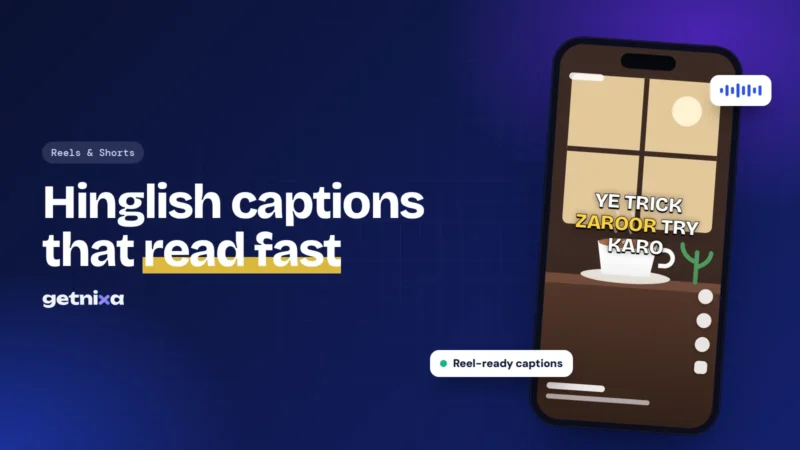
- How to add captions to Reels in Hindi or Hinglish
- Styling tips so captions actually get read
- Common mistakes and how to fix them
- A faster way to caption Reels with GetNixa
- Your Reel caption checklist
- Frequently asked questions
Most people scroll Reels with the sound off, on a bus, in class or late at night. So if you want to know how to add captions to Reels, the good news is that you have three solid routes: Instagram’s own tools, the free Edits app, or a caption tool that burns styled text into the video.
This guide walks through each one, shows where each breaks for Hindi and Hinglish speech, and helps you pick the right method for your next post.
Quick answer: To caption a Reel inside Instagram, open the Reel editor, tap the sticker icon and choose the Captions sticker, then fix any wrong words and pick a style. For more control, generate captions in a separate tool, correct them, style them, and export an MP4 with the captions burned in before you upload it.
What are Reel captions, and which kind do you need?
A caption is on-screen text that matches what is said in the video, timed to the speech. On Reels, there are two kinds you will meet.
- Burned-in (open) captions are part of the video picture. Everyone sees them, on every app, and nobody can switch them off.
- Auto-generated (closed) captions are added by Instagram as a layer. Viewers can turn them on or off in their own settings.
For creators, burned-in captions are usually the safer choice. You control the font, the colour and the position, and the text looks the same when the Reel is shared to WhatsApp or reposted as a Short. If the terms are new to you, our guide to captions vs subtitles explains the difference in plain words.

Method 1: How do I add captions to Reels inside Instagram?
Instagram has a Captions sticker in the Reel editor. It listens to your audio and writes the words on screen for you. Menu names shift a little between app versions and between Android and iPhone, so treat these steps as a guide.
- Start a Reel. Tap the plus button, choose Reel, then record or pick a clip from your gallery.
- Open the editor. Tap Next to reach the screen with the text, sticker and audio icons.
- Add the Captions sticker. Tap the sticker icon and choose Captions. If you can’t see it, type “captions” in the sticker search bar.
- Check the words. Tap the caption text to correct names, brand words and anything the app misheard.
- Pick a style and position. Switch between the built-in looks, then drag the text clear of your face and the buttons.
- Share. Tap Next, write your post caption and hashtags, then share.
Instagram keeps its official steps for viewing and managing captions on its Help Center page on Reels and video captions. Check it if your screen looks different.
Note: The sticker is not available for every language, account or region, and it rolls out at different times. If it is missing, update the app first, then try again.
Adding text by hand with the Aa tool
For a short Reel with only a few lines, you can type captions yourself. Tap the Aa icon, type a line, then set how long it stays on screen so it matches the speech. It works in any language you can type, including Devanagari, but it gets slow after about 15 seconds of talking.
Method 2: Use the free Edits app from Instagram
Edits is a free video editor from Instagram for Android and iPhone. According to Instagram’s own Edits caption generator tutorial, you tap Captions and the app creates timed captions automatically. Then you can fix typos, split long lines and merge short ones in a bulk editor.
- Finish your edit first. Cut, trim and add music before captions, so the timing doesn’t shift later.
- Tap Captions. The app transcribes your clip and places the text on the timeline.
- Clean up the text. Select any caption to open the bulk editor, then correct, split or merge lines.
- Style it. Choose a preset or change the font, colour, outline and line height.
- Export or share. Post straight to Instagram, or save the video to your phone.
Edits gives you far more control than the sticker, and the captions end up burned into the video. But you still need to check every line, especially in mixed-language speech.
Method 3: Burn captions in with a caption tool
A dedicated caption tool does the same job with more styles and better handling of non-English speech. This route suits you if you post often, run a brand page, or speak Hindi, Hinglish or another Indian language on camera.
The flow is similar in most tools: upload, transcribe, correct, style and export an MP4. Many also export an SRT file, which is a plain text file of captions with start and end times. Our guide on what an SRT file is shows a sample. For more ways to caption any video on phone or PC, see how to add subtitles to a video.

Which method should you use? A quick comparison
| What you need | Captions sticker | Edits app | Caption tool |
|---|---|---|---|
| Cost | Free | Free | Free plans and paid plans |
| Style control | A few built-in looks | Presets plus font, colour, outline | Templates, animations, word-by-word |
| Fixing words | Tap to edit | Bulk editor | Full transcript editor |
| Hindi and Hinglish | Depends on language support | Check before you rely on it | Best when the tool lists them |
| Works outside Instagram | No, it stays in the Reel | Yes, once exported | Yes, MP4 and SRT |
| Best for | Quick personal Reels | Regular creators on a budget | Brands, Indian languages, batches |
Use the sticker if you post casually in English and want captions in under a minute. Use Edits if you already edit on your phone and want better styling for free. Use a caption tool if you speak Hindi, Hinglish or a regional language, want animated styles, or need the same video on Shorts and WhatsApp.
How to add captions to Reels in Hindi or Hinglish
This is where most guides stop, and where Indian creators get stuck. Hindi can be written two ways on screen, and you need to pick one before you caption.
- Devanagari: “आज हम बनाएंगे” in Hindi script. It reads naturally for Hindi viewers but needs a font that supports Devanagari.
- Hinglish: “Aaj hum banayenge” in English letters. Most young Indian audiences type and read this way on their phones.
Mixed speech causes the most errors. A line like “Ye hack try karo, it saves so much time” switches language halfway. Many auto tools either drop the English words or spell the Hindi ones oddly. So pick a tool that lets you set the output script, and read the whole transcript once before export.
Tip: Keep one script per Reel. Switching between Devanagari and English letters inside the same video looks messy and slows reading.
Styling tips so captions actually get read
- Keep lines short. Aim for 3 to 6 words per line and no more than two lines at once.
- Use high contrast. White text with a dark outline, or a solid box behind the text, works on any background.
- Stay inside the safe zone. The username, the post caption and the like and share buttons cover the bottom and right side of a Reel. Keep captions roughly in the centre or upper middle.
- Highlight one word. Colour the punch word in each line, not every word.
- Try animation with care. Word-by-word and pop-in styles hold attention, but too much movement tires the eye.

Common mistakes and how to fix them
- Captions sticker missing. Update Instagram, restart the phone, and search “captions” in the sticker tray. If it still isn’t there, use Edits or a caption tool instead.
- Wrong words. Background music and fans confuse speech recognition. Record in a quiet room, keep the phone close, and lower the music under your voice.
- Captions out of sync. This happens when you trim the clip after captioning. Always caption last.
- Text cut off or hidden. Move it above the bottom fifth of the screen and check the preview before you post.
- Hindi shows as boxes. The font doesn’t support Devanagari. Switch to a font that does, or use Hinglish.
- Blurry text after upload. Export at 1080p, and use a bold font with an outline so thin strokes don’t blur.
A faster way to caption Reels with GetNixa
GetNixa is one option if you caption a lot of Reels or speak an Indian language. It is an AI caption tool that runs in the browser and also has desktop apps for Mac and Windows.
- Upload your Reel. Open the Reels caption generator and drop in your video.
- Pick the spoken language. It covers 30 languages. Hindi can come out in Devanagari or as Hinglish in English letters.
- Fix any word. Click or double-click a word to correct it.
- Choose a style. Pick a template, then change the font, colours, position and animation. You can use word-by-word captions or other animated caption styles.
- Export. Download an MP4 sized for Instagram, or an SRT file.
The Free plan gives you 30 caption minutes a month for videos up to 2 minutes, at 1080p, with no watermark. That covers a lot of short Reels for students and small shops. Its optional AI Auto edit can also suggest a hook, highlight punch words and keep captions off your face, and you can change everything it picks.
Your Reel caption checklist
- Edit and trim the video first, caption last.
- Choose one script: Devanagari, Hinglish or English.
- Read every line once and fix names and brand words.
- Keep lines short and inside the safe zone.
- Preview with the sound off before you share.
Caption your next Reel in Hindi, Hinglish or English in a few minutes. Upload, fix any word, pick a style and export with no watermark.
Frequently asked questions
Why can’t I find the Captions sticker on Instagram?
The sticker reaches accounts at different times and doesn’t support every language. First update the app, then search “captions” in the sticker tray. If it still doesn’t show, caption the video in the Edits app or another caption tool and upload the finished file.
Can I add captions to a Reel after posting it?
You can’t burn new captions into a Reel that is already live. You can change the post caption text, but on-screen captions need a new upload. So save a copy of the original video, add captions in an editor, and post it again if the Reel matters to you.
Do captions help Reels get more views?
Captions help people follow your Reel without sound, which keeps more of them watching. They also make the video accessible to deaf and hard-of-hearing viewers. They don’t guarantee reach on their own, but a Reel that people can understand on mute has a better chance of being watched to the end.
How do I add Hindi captions to Instagram Reels?
Decide first whether you want Hindi script (Devanagari) or Hinglish in English letters. Then use a tool that lets you choose that output, check every line for mixed Hindi and English words, and use a font that supports Devanagari if you chose Hindi script. Export the video and upload it as a Reel.
What is the difference between a Reel caption and on-screen captions?
The Reel caption is the text you type below the video when you post, along with hashtags. On-screen captions are the words shown inside the video, timed to what you say. Both matter, but only on-screen captions help someone watching with the sound off.

Written by
GetNixa Team
The team behind GetNixa, the AI caption app for Indian creators. We write practical guides on captions, editing and growing on Instagram and YouTube.