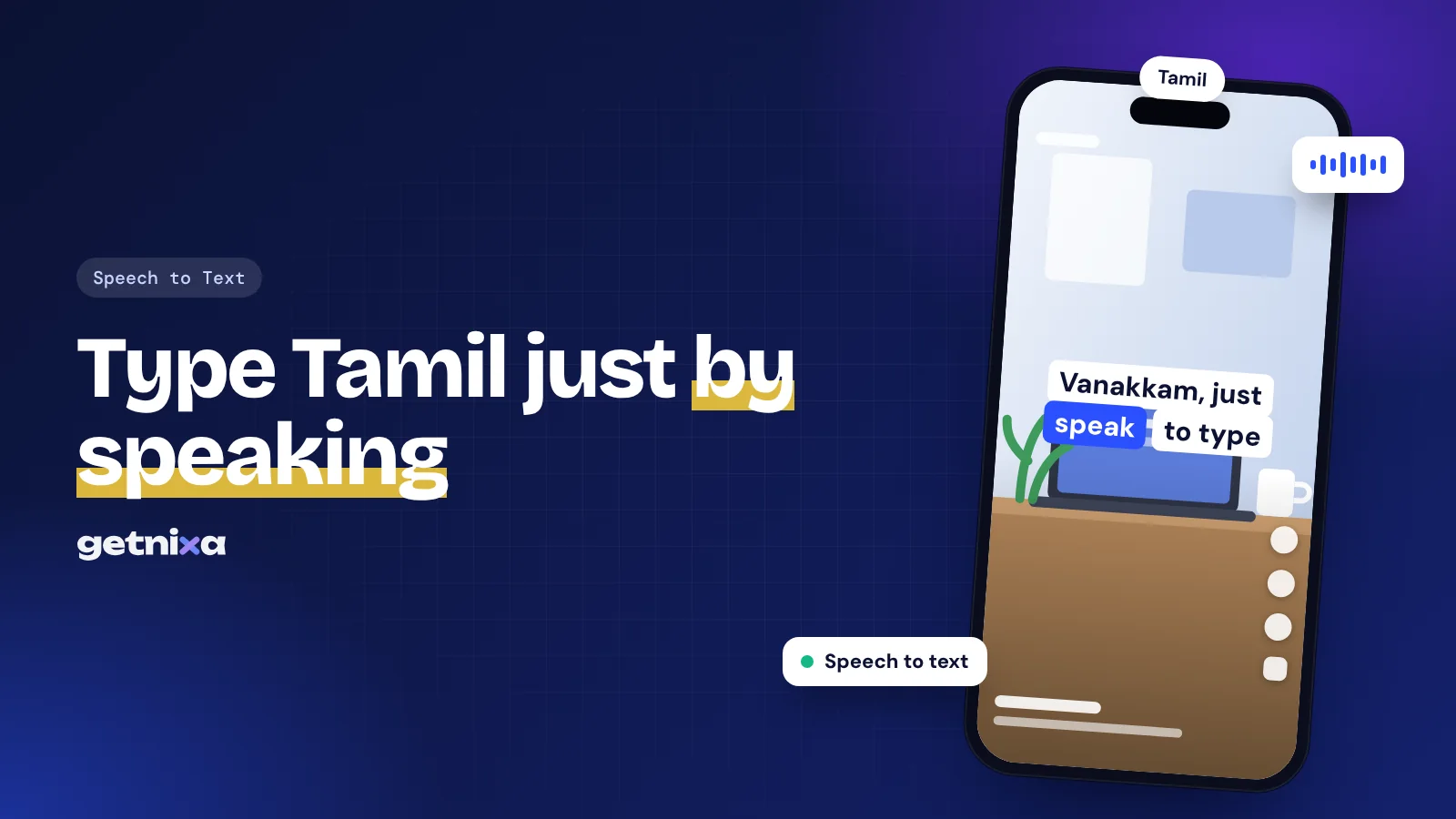
Tamil Voice Typing: How to Type Tamil by Speaking (Phone and PC)
Tamil voice typing on Android, iPhone, Google Docs and Windows, with layout picks, Tanglish tips and fixes for ல ள ழ errors. Start typing faster today.

On this page
- What is Tamil voice typing?
- Which devices support Tamil voice typing?
- How to use Tamil voice typing on Android
- Tamil voice typing on iPhone
- Tamil voice typing on a PC or Mac
- Google Docs (Windows, Mac, Chromebook)
- Windows 11 voice typing
- Keyboard layouts and transliteration: what to pick
- Speaking Tanglish: how mixed speech comes out
- Spoken Tamil vs written Tamil
- Common problems and fixes
- When the mic does nothing
- Tamil voice typing tips for better accuracy
- From recorded speech to Tamil captions
- Start speaking in Tamil
- Frequently asked questions
Tamil voice typing lets you speak in Tamil and watch the words appear in Tamil script, with no need to learn a Tamil keyboard. It works on Android, iPhone, Windows and in Google Docs, and the setup takes about two minutes on each.
This guide covers every device, the layouts that pair with Tamil voice typing, and the spelling mistakes speech tools make most in Tamil.
Quick answer: On Android or iPhone, install Gboard, add Tamil under Languages, then tap the mic at the top of the keyboard and speak. On a computer, open Google Docs in Chrome, Edge or Safari, go to Tools, then Voice typing, pick Tamil (India) and click the mic. On Windows 11, press Windows key + H.
What is Tamil voice typing?
Voice typing is speech to text inside a keyboard or app: you talk, and the software writes what it hears. For Tamil, the output is Unicode Tamil script, so you can paste it into WhatsApp, Instagram, email or a Word file without font problems.
Voice typing is different from transcription. Typing happens live, as you speak into a text box. Transcription turns a recorded file into text later. If you have a recorded video or call, read our guide on how to transcribe audio to text instead.
Which devices support Tamil voice typing?
| Device or app | Tamil voice input? | How to start | Notes |
|---|---|---|---|
| Gboard on Android | Yes | Mic at top of keyboard | Best everyday option on phones |
| Gboard on iPhone | Yes | Mic on the Gboard keyboard | Tamil is in Gboard’s iOS language list |
| iPhone built-in dictation | No | Not available | Tamil is missing from Apple’s dictation list |
| Google Docs (browser) | Yes | Tools, then Voice typing | Four Tamil variants to choose from |
| Windows 11 voice typing | Yes, Tamil (India) | Windows key + H | Needs an internet connection |
Apple’s iOS feature availability page lists Hindi (India) and English (India) for dictation, but not Tamil. So on an iPhone, Gboard is the practical route.
How to use Tamil voice typing on Android
Gboard is the easiest way to get Tamil voice typing on Android, and most phones ship with it. If yours uses a brand keyboard (Samsung, for example), install Gboard from the Play Store first, then set it as the default keyboard.
- Open any app with a text box. WhatsApp, Gmail or Keep all work. Tap the text field so the keyboard opens.
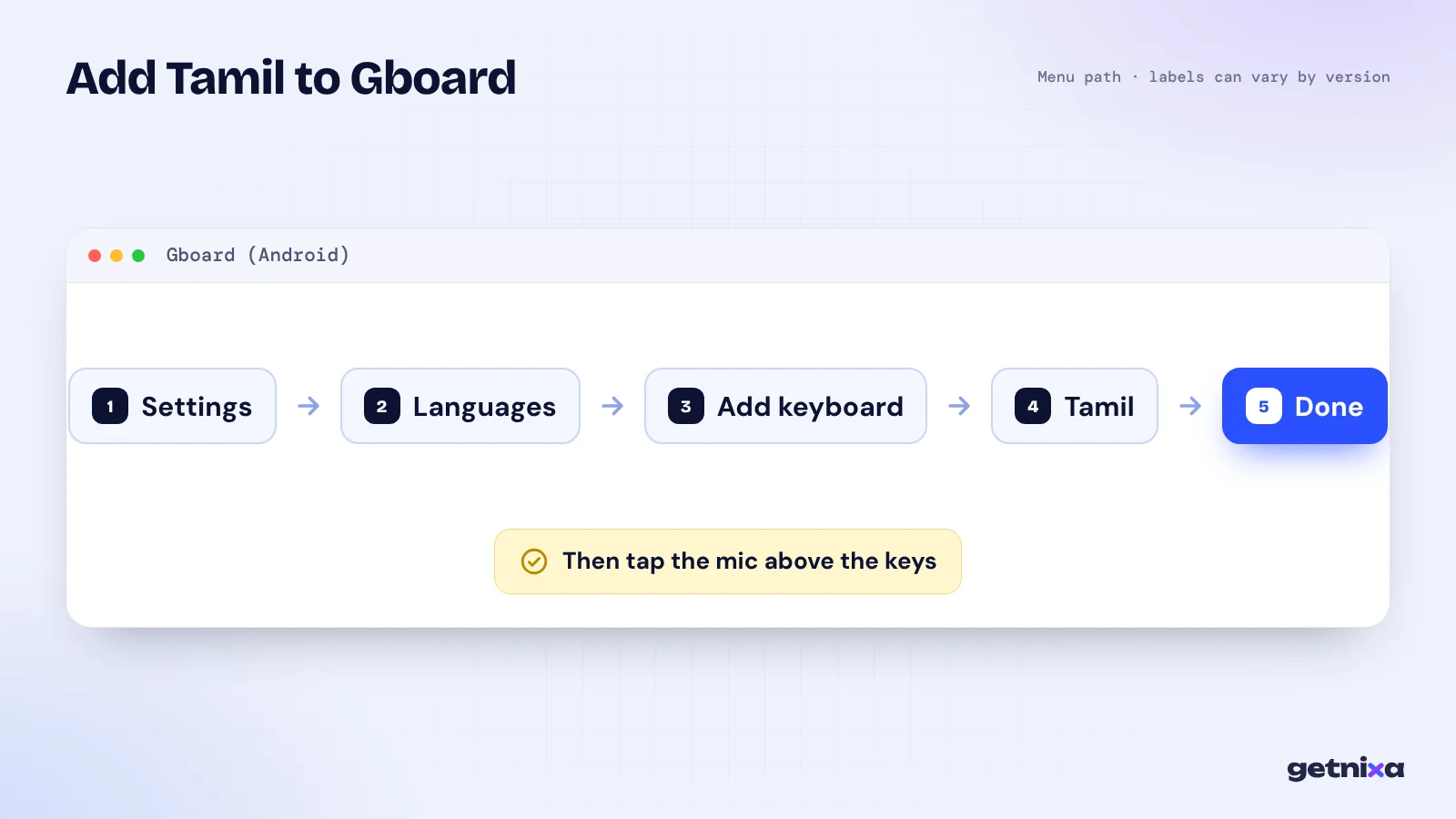
- Add Tamil. Tap the Settings gear on the keyboard, then Languages, then Add keyboard. Pick Tamil, choose a layout and tap Done.
- Switch to Tamil. Touch and hold the space bar and select Tamil. You can also turn on a language switch key under Preferences.
- Tap the mic. It sits at the top of the keyboard. Wait for “Speak now”, then talk at a normal pace.
- Fix a wrong word by voice. Touch and hold the word, tap the mic again and say the right word.
Menu names can differ slightly by Gboard version and phone brand. If you can’t find Languages, open your phone’s Settings, go to System, then Keyboard, then On-screen keyboard, then Gboard.
Tamil voice typing on iPhone
Since Apple’s own dictation does not offer Tamil, Tamil voice typing on iPhone runs through Gboard.
- Install Gboard. Download it from the App Store and open it once to finish setup.
- Enable the keyboard. In iPhone Settings, add Gboard as a keyboard. Follow the prompts the Gboard app shows, as wording can change between versions.
- Add Tamil inside Gboard. Open the Gboard app, go to Languages and add Tamil.
- Speak. In any app, switch to Gboard with the globe key and tap the mic.
Note: Gboard’s App Store listing says audio from its mic is sent to Google for transcription. Avoid dictating passwords, bank details or anything private.
Tamil voice typing on a PC or Mac
Google Docs (Windows, Mac, Chromebook)
Google Docs is the free way to do Tamil voice typing on any computer with a modern browser. According to Google’s Docs help page, voice typing runs in the latest Chrome, Edge and Safari.
- Open a new document. Go to Google Docs and create a blank file.
- Turn on voice typing. Click Tools, then Voice typing. A mic box appears.
- Choose your Tamil variant. The list has Tamil (India), Tamil (Sri Lanka), Tamil (Singapore) and Tamil (Malaysia). Pick the one closest to your accent.
- Click the mic and speak. Click it again to stop. Allow mic access if the browser asks.
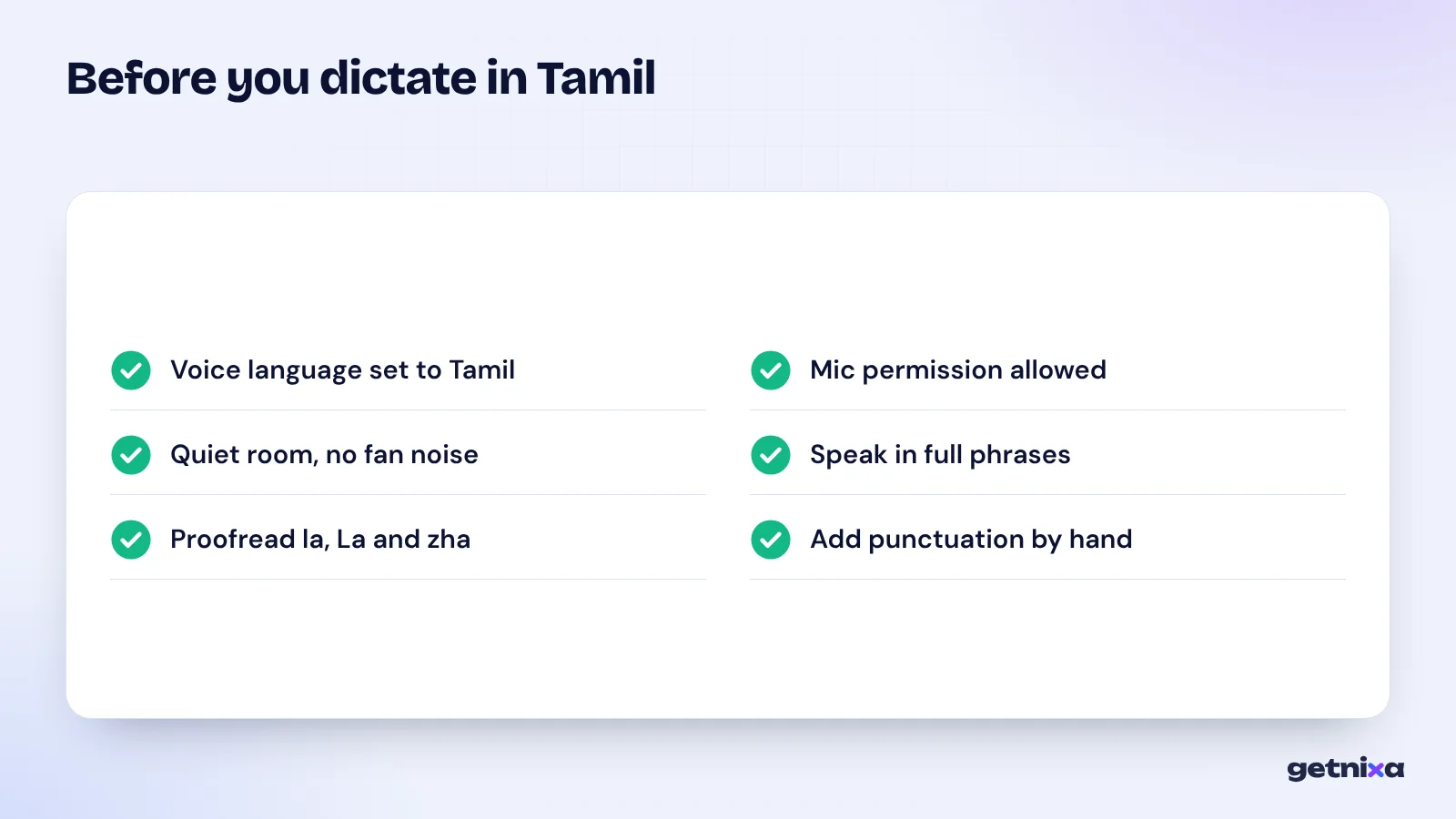
Spoken punctuation commands such as “comma” or “new line” work only in English in Google Docs. In Tamil, add full stops and commas by hand after you finish.
Windows 11 voice typing
Microsoft’s voice typing help page lists Tamil (India) as a supported language.
- Add Tamil to Windows. Go to Settings, then Time and language, then Language and region, and add Tamil.
- Switch input. Press Windows key + Spacebar until Tamil is active.
- Start dictation. Put your cursor in a text box and press Windows key + H. Speak after “Listening…” appears.
Windows voice typing uses online speech recognition, so you need an internet connection.
On a Mac, the dependable choice is Google Docs in Chrome or Safari.
Keyboard layouts and transliteration: what to pick
Tamil voice typing never gets every word right. So you also need a way to type fixes, and Tamil gives you three main choices.
- Transliteration (phonetic) layout: you type Tamil sounds with English letters and the keyboard converts them. Typing “vanakkam” gives you வணக்கம். This suits people who know spoken Tamil but never learned a Tamil keyboard.
- Tamil 99: a native-script layout approved by the Tamil Nadu government in 1999. It is faster once learned, and many Tamil typists use it.
- Handwriting: you draw letters with your finger.
Gboard adds a layout when you add the language, and you can enable more than one. Windows also offers an Indic Phonetic keyboard for Tamil alongside the standard INSCRIPT one.
Tip: Enable both voice and a transliteration layout. Dictate the sentence, then fix the odd wrong letter by typing it phonetically. It is the fastest mix for most people.
Speaking Tanglish: how mixed speech comes out
Most of us don’t speak pure Tamil. A normal sentence might be “Video edit பண்ணிட்டேன், evening upload பண்றேன்.”
When the voice language is set to Tamil, the tool usually writes English words in Tamil script too. So “video” may come out as வீடியோ.
- For mostly Tamil text, keep the language on Tamil and accept loanwords in Tamil script.
- For mostly English text with a few Tamil words, switch to English and type the Tamil words by hand.
- For brand names and handles, type them after dictation. Speech tools rarely spell them right.
Spoken Tamil vs written Tamil
Tamil has a wide gap between how people talk and how they write. Voice typing writes roughly what you say, so “நாளைக்கு மீட்டிங் இருக்கு” stays colloquial.
For a formal letter, school work or an official post, say it in a more formal register or edit afterwards, for example to “நாளை கூட்டம் உள்ளது”.
Common problems and fixes
Tamil has several letter pairs that sound close, and speech tools mix them up. Check these first when you proofread.
| Problem | Example | Fix |
|---|---|---|
| ல / ள / ழ mixed up | பழம் (fruit) written as பலம் (strength) | Say the word slowly and clearly, or retype that letter |
| ர / ற swapped | அறை (room) becomes அரை (half) | Read the sentence for meaning, then correct |
| ன / ந / ண confusion | பணம் with the wrong n letter | Retype with transliteration or Tamil 99 |
| Missing pulli (dot) | கல் shown without the dot | Add the dot by hand; it changes the sound |
| Grantha letters dropped | ஜ or ஷ in loanwords written with other letters | Type the Grantha letter manually if you prefer it |
When the mic does nothing
- No text appears: check that the app has microphone permission in phone settings.
- Text comes out in English: the voice language is still English. Tap the language label on the voice panel and choose Tamil.
- Windows says it can’t connect: voice typing needs the internet. Check your connection or try again.
- Words cut off mid-sentence: pause less and keep the phone close to your mouth.
Tamil voice typing tips for better accuracy
- Pick the right regional variant in Google Docs. A Sri Lankan accent may do better on Tamil (Sri Lanka).
- Dictate short paragraphs, then proofread straight away while you still remember what you said.
- Add punctuation after you finish, since spoken commands are limited in Tamil.
From recorded speech to Tamil captions
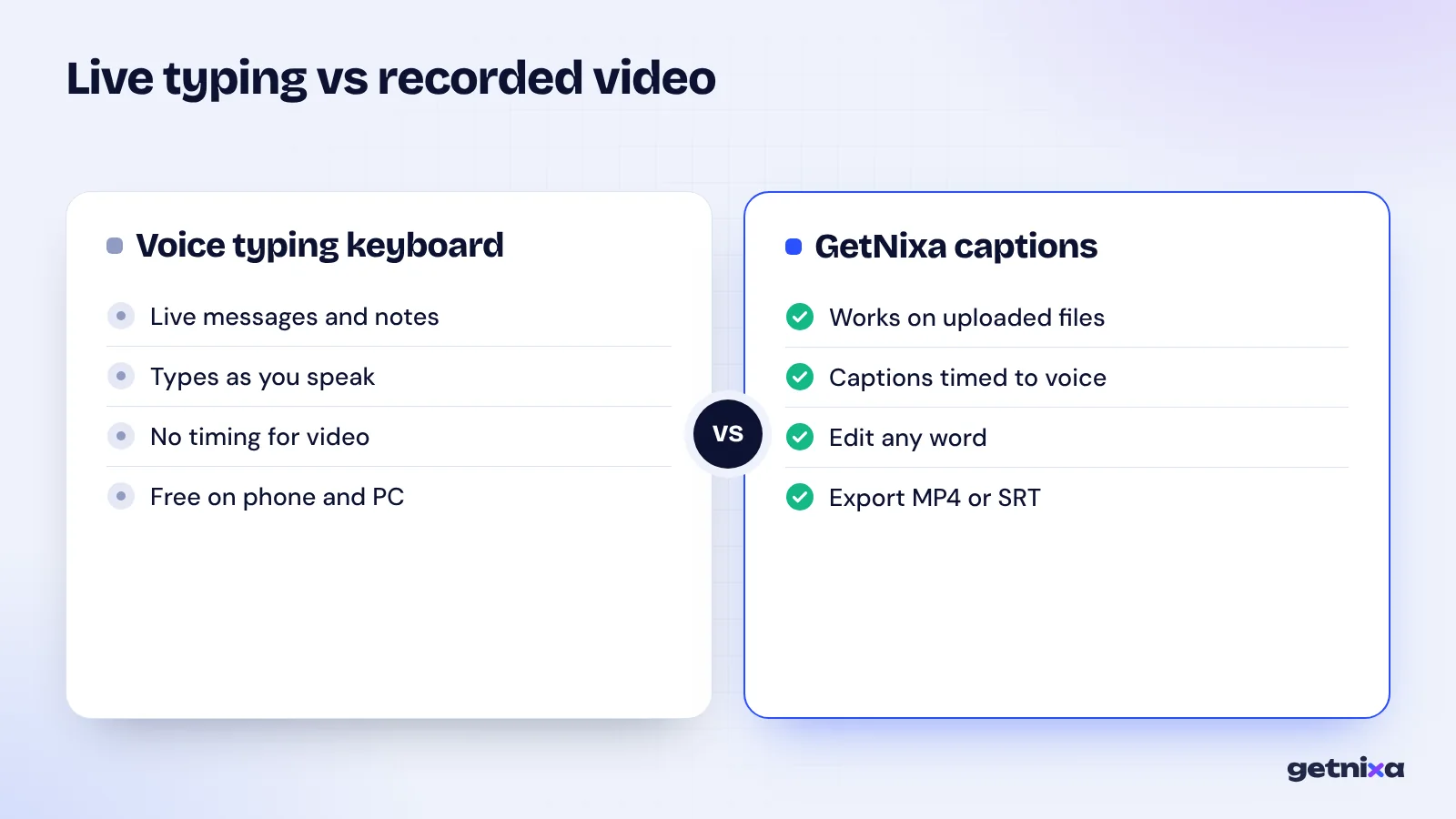
Voice typing is built for live messages and notes. It is not built for a 3 minute Reel you already filmed.
This is where GetNixa can help. It is not a live keyboard, so keep Gboard for messages. GetNixa works on video and audio files you upload.
- Upload a video, pick Tamil as the spoken language, and the AI writes captions timed to your voice.
- Double-click any word to fix it, for example a ழ that came out as ள.
- Choose a template, font, colour and animation, then export an MP4 for Instagram, YouTube Shorts or WhatsApp, or an SRT file.
- You can also translate Tamil speech into English captions to reach viewers outside Tamil Nadu.
See the Tamil caption generator for captions, or our speech to text and audio to text tools for plain transcripts. The Free plan gives 30 caption minutes a month with no watermark.
For the wider picture on adding text to clips, see how to add subtitles to a video. If you also write in other languages, our Marathi voice typing and Malayalam voice typing guides cover their own scripts, and the general voice typing guide covers English and Hindi.
Start speaking in Tamil
For messages, Gboard on your phone is the quickest start. For long documents, use Google Docs or Windows key + H on a computer. In every case, proofread the tricky letter pairs before you hit send.
Turn your recorded Tamil videos into timed captions in minutes. Upload a clip, fix any word with a double-click and export without a watermark.
Frequently asked questions
Is Tamil voice typing free?
Yes. Gboard on Android and iPhone, Google Docs voice typing and Windows 11 voice typing are all free to use. You only need a Google account for Docs and an internet connection for Windows. Your mobile data is used while audio is sent for recognition, so Wi-Fi helps on long sessions.
Does iPhone dictation support Tamil?
Not at the moment. Apple’s iOS feature availability page lists Hindi and English (India) for dictation, but Tamil is not on it. Install Gboard from the App Store, add Tamil inside the Gboard app and use its mic. Follow the setup prompts in the Gboard app, since exact wording changes between versions.
How do I type Tamil by speaking on a computer?
Open Google Docs in Chrome, Edge or Safari, click Tools, then Voice typing, choose Tamil (India) and click the mic. On Windows 11, add Tamil in Language and region settings, switch to it with Windows key + Spacebar, then press Windows key + H. Both need an internet connection.
Can I add punctuation by voice in Tamil?
Mostly no. Google Docs supports spoken commands like “comma” and “new paragraph” only in English. Gboard says punctuation commands vary by language. The reliable method is to dictate a paragraph, then add full stops, commas and question marks by hand while you proofread the text.
Why does voice typing confuse ல, ள and ழ?
These three sounds are close, and casual speech often blurs them. Speech models pick the most likely word from context, so a short or unclear phrase can get the wrong letter. Speak in full sentences, say the letter clearly, and fix leftovers with a transliteration or Tamil 99 keyboard.
Can I convert a Tamil video into text?
Yes, but a keyboard is the wrong tool. Use a transcription or caption tool that accepts files. In GetNixa you upload the video, choose Tamil as the spoken language and get timed captions you can edit, then export an SRT or a captioned MP4. Transcripts come with the Creator plan and above.

Written by
GetNixa Team
The team behind GetNixa, the AI caption app for Indian creators. We write practical guides on captions, editing and growing on Instagram and YouTube.