Google Voice Hindi Typing: Setup on Android, iPhone and PC
Set up Google voice Hindi typing on Android, iPhone and PC in minutes, choose Devanagari or Hinglish output, and fix the most common errors.

On this page
- What is Google voice typing?
- How to set up Google voice Hindi typing on Android
- Advanced voice typing on Pixel phones
- How to use Google voice typing in Hindi on iPhone
- Option 1: Gboard on iPhone
- Option 2: Apple Dictation with a Hindi keyboard
- How to do Hindi voice typing on a computer with Google Docs
- Devanagari or Hinglish: which output do you need?
- Common problems with Google voice Hindi typing (and fixes)
- Need Hindi text from a video, not live speech?
- Which method should you pick?
- Wrapping up
- Frequently asked questions
Typing Hindi on a phone keyboard is slow, and matras make it slower. Google voice Hindi typing fixes that: you speak, and Google writes the words for you in Devanagari. This guide shows the exact setup on Android, iPhone and a computer.
You will also see how to get Hinglish instead of Devanagari, how to fix common errors, and what to use when you need Hindi text from a recorded video rather than live speech.
Quick answer: On Android, open Gboard settings, go to Languages, add “Hindi, Devanagari”, then tap the mic on the keyboard and speak. On a computer, open a Google Doc in Chrome, choose Tools, then Voice typing, pick Hindi, and click the mic. On iPhone, use Gboard’s mic or Apple Dictation with a Hindi keyboard.
What is Google voice typing?
Google voice typing is the speech to text feature built into Google’s keyboard and some Google apps. Speech to text means software that listens to your voice and turns it into written words.
You will find it in three main places:
- Gboard, Google’s keyboard for Android and iPhone, through the mic key.
- Google Docs on a computer, through Tools, then Voice typing.
- Some Android phones that use Google’s speech services in other keyboards and apps.
Hindi has been supported for years. Google’s India blog noted in August 2017 that Gboard added voice input for eight more Indian languages, and that Hindi already had it.
How to set up Google voice Hindi typing on Android
Many Android phones come with Gboard. If yours uses a different keyboard, install Gboard from the Play Store first and set it as your default keyboard.
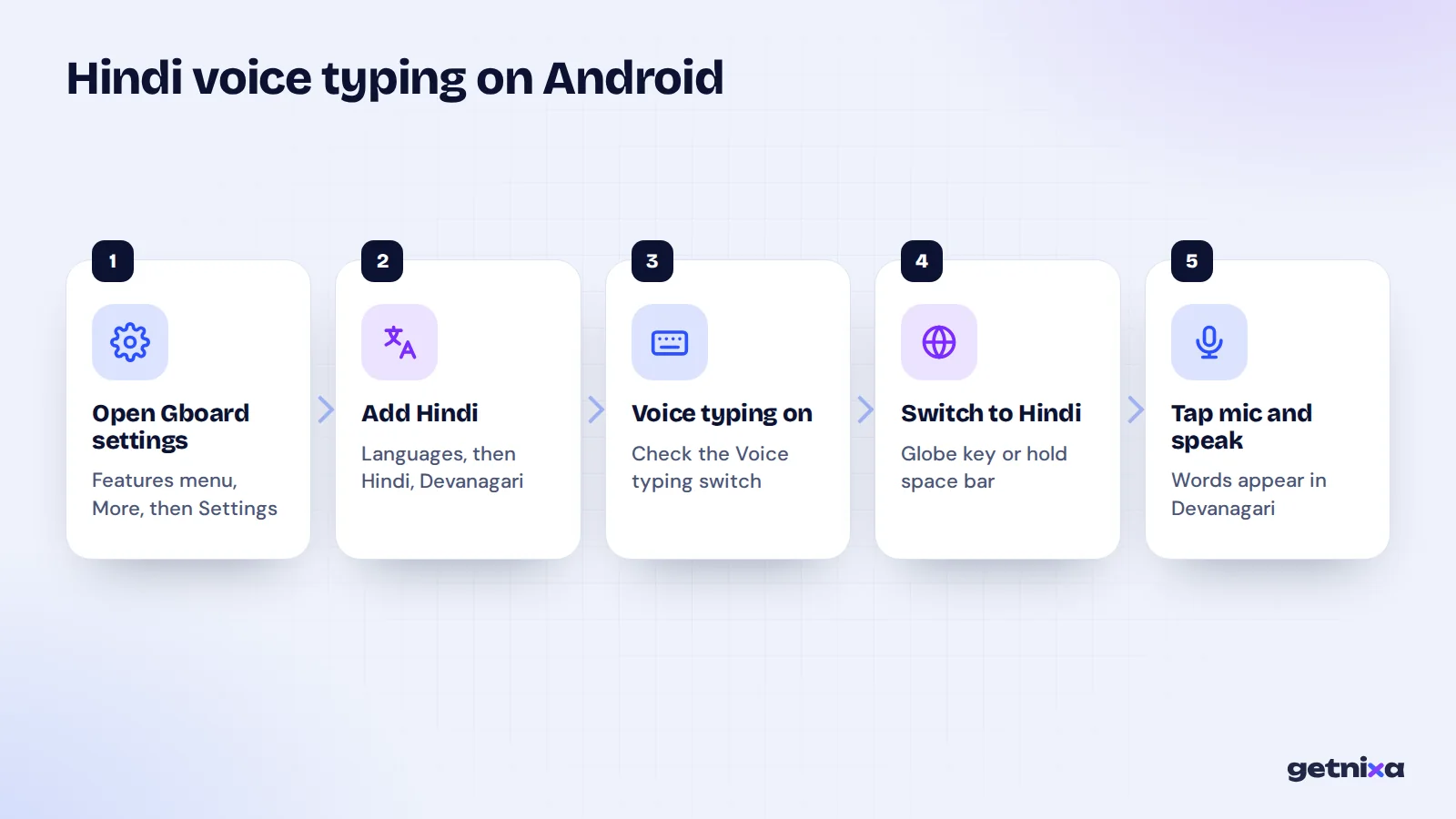
- Open any app where you type. For example WhatsApp, Messages or Keep, and tap a text box.
- Open Gboard settings. Tap the features menu icon at the top left of the keyboard, then More, then Settings.
- Add Hindi. Tap Languages, then add a Hindi option. Gboard lists “Hindi, Devanagari”, “Hindi, Latin / Hinglish” and “Hindi, Transliteration”. Pick a layout and tap Done.
- Check that voice typing is on. In the same Settings screen, open Voice typing and make sure it is switched on.
- Switch to Hindi and speak. Tap the globe key or touch and hold the space bar to switch to Hindi. Then tap the mic and talk.
These menu names come from Google’s Gboard setup help page. Phone makers sometimes move things around, so on a Samsung or Xiaomi phone the path to keyboard settings can look slightly different.
Tip: To keep the mic listening for longer messages, double-tap the mic key. Tap it again or close the keyboard when you are done.
Advanced voice typing on Pixel phones
Pixel 6 and newer phones have “advanced voice typing” with extra features like auto punctuation and voice editing commands. But Google’s help page lists only English, French, German, Italian, Japanese and Spanish for these features. So for Hindi, you get standard voice typing, which still works well for clear speech.
How to use Google voice typing in Hindi on iPhone
On iPhone you have two routes. Both work well, and you can keep both installed.
Option 1: Gboard on iPhone
- Install Gboard. Download it from the App Store.
- Add it as a keyboard. Open Settings, then General, Keyboard, Keyboards, and move Gboard to the top of the list.
- Add Hindi in Gboard. Open the Gboard app, tap Languages, then Add language, and choose Hindi.
- Tap the mic and speak. Switch to Hindi on the keyboard, tap the mic and talk.
Gboard on iPhone supports up to three languages at a time. Its App Store listing also says voice input from Gboard’s mic is sent to Google for transcription, so keep that in mind for private notes.
Option 2: Apple Dictation with a Hindi keyboard
Apple’s own dictation also supports Hindi. Apple’s iOS feature availability page lists Hindi (India) under Dictation. Add a Hindi keyboard in Settings, then General, Keyboard, Keyboards. Make sure dictation is turned on in the same Keyboard settings. Then switch to the Hindi keyboard and tap the mic key.
The same Apple page shows Hindi is not on the on-device dictation list, so you need an internet connection for it.
How to do Hindi voice typing on a computer with Google Docs
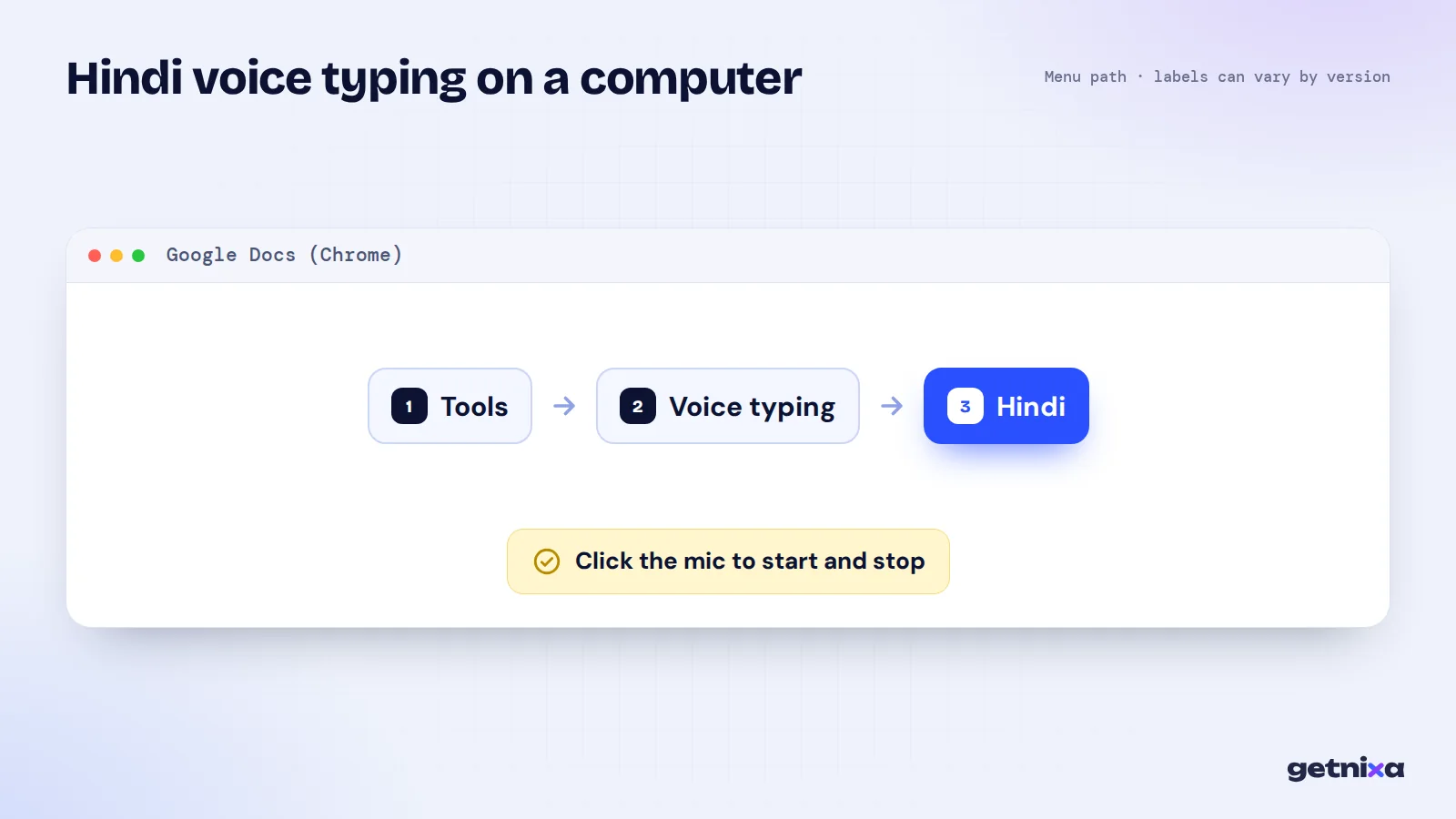
On a laptop or desktop, Google Docs is the simplest free option. According to the official Docs help page on dictation, it works in Chrome, Edge and Safari, and Hindi is on the supported list.
- Open a new Google Doc. Use Chrome, Edge or Safari, and sign in to your Google account.
- Start voice typing. Click Tools, then Voice typing. A microphone box appears.
- Choose Hindi. Click the language name in the voice typing box and pick Hindi.
- Allow the mic and speak. Click the microphone, allow access if your browser asks, and start talking.
- Stop when done. Click the microphone again to stop.
Note: Voice commands like “select paragraph” work only in English in Google Docs. Spoken punctuation like “comma” and “new line” may also not work in every language, so plan to add some punctuation by hand.
Then copy the text into WhatsApp Web, an email or your script file.
Devanagari or Hinglish: which output do you need?
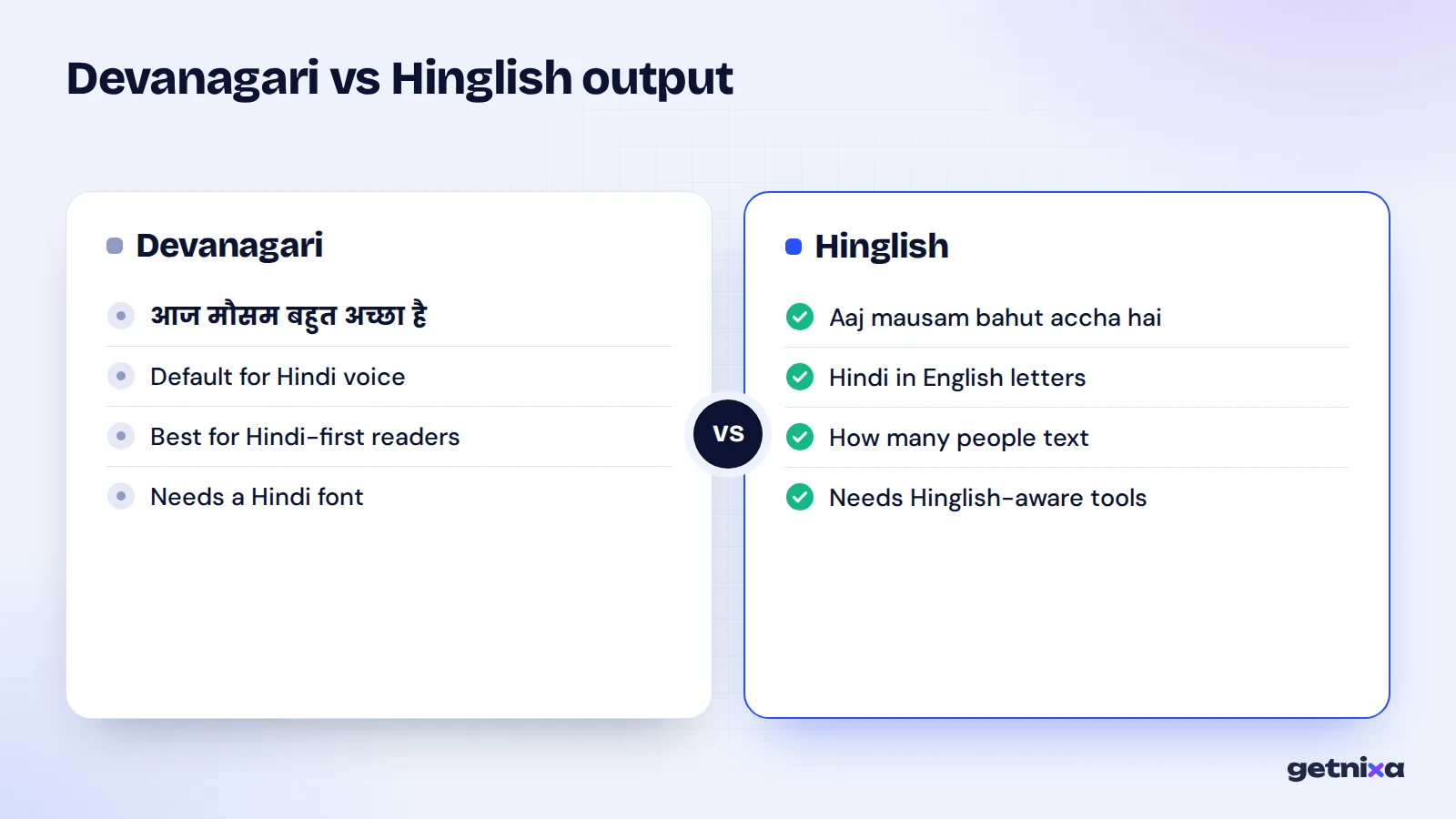
This is where many people get stuck. Hindi voice typing usually writes in Devanagari script. But many creators and young users write Hindi in English letters, often called Hinglish or romanised Hindi.
| You want | Example | What to use |
|---|---|---|
| Hindi in Devanagari | आज मौसम बहुत अच्छा है | Gboard “Hindi, Devanagari” voice, Google Docs, or Apple Dictation |
| Hindi in English letters | Aaj mausam bahut accha hai | Type with the “Hindi, Latin / Hinglish” layout, or use a tool built for Hinglish output |
| Mixed Hindi and English | Kal ka meeting reschedule karo | Expect mistakes, then edit by hand |
| English only | Call me after lunch | English (India) voice typing |
Mixed speech is the hardest case. A voice model set to Hindi may write English words in Devanagari, like “मीटिंग”, while a model set to English may miss the Hindi words. So for code-mixed speech, check every line. Our deep dive on why Hinglish breaks most speech to text tools explains the reasons.
Common problems with Google voice Hindi typing (and fixes)
- The mic key is missing. Voice typing is switched off. Open Gboard settings, then Voice typing, and turn it on.
- It types English instead of Hindi. The active language is English. Tap the globe or hold the space bar to switch to Hindi before you speak.
- Words come out wrong. Speak at a steady pace, close to the phone, away from fans and traffic. Short sentences work better than long ones.
- No punctuation. Say the punctuation if it works for your language, or add it by hand after. Hindi users often need to add the danda (।) themselves.
- It stops after a few seconds. Double-tap the mic to keep it listening, or speak in shorter chunks.
- Nothing happens on a laptop. Check that your browser has mic access and that no other app, such as a video call, is using the mic.
Need Hindi text from a video, not live speech?
Voice typing is built for live speaking. It is not good at turning a recorded reel, podcast or lecture into text, because you would have to play the audio into the mic and fix the timing yourself.
For recordings, a transcription tool is the better fit. GetNixa is one option, built first for Indian creators. You upload a video, pick Hindi, and choose whether the words come out in Devanagari or as Hinglish in English letters. Then you click any word to fix it and export captions, an SRT file, or (on the Creator plan and above) a transcript.
The Hindi speech to text page covers Devanagari output, and the Hinglish speech to text page covers English-letter output. For other languages, see the general speech to text page. And if you want to compare more free methods, our guide to 5 ways to type Hindi by speaking lists them side by side, while how to transcribe a video to text covers recorded files.
Which method should you pick?
- Use Gboard if you type Hindi messages, captions or notes on an Android phone every day.
- Use Apple Dictation or Gboard if you are on an iPhone. Try both and keep the one that understands your accent better.
- Use Google Docs if you write long Hindi scripts, articles or assignments on a computer.
- Use a transcription tool if the speech is already recorded in a video or audio file.
Wrapping up
Dictating with Google makes Hindi writing faster on every device, as long as you add Hindi as a language and switch to it before you speak. Check mixed Hindi and English lines, add punctuation by hand, and use a transcription tool when the speech is already on video.
Turn recorded Hindi speech into text and captions, in Devanagari or Hinglish. Upload a video, pick Hindi, fix any word and export.
Frequently asked questions
Is Google voice typing in Hindi free?
Yes. Gboard’s mic on Android and iPhone, and dictation in Google Docs on a computer, are free to use with Hindi. You only need the app or a supported browser, a working microphone and, in most cases, an internet connection. There is no paid plan needed for basic Hindi dictation.
Can Google voice typing write Hindi in English letters?
Hindi voice typing usually writes in Devanagari. Gboard does offer a “Hindi, Latin / Hinglish” keyboard layout for typing in English letters, but voice results can vary by phone and app version. If you need Hinglish text from speech every time, test it first, or use a tool that offers Hinglish output.
Does Hindi voice typing work offline?
Usually you need internet. Apple’s feature page does not list Hindi for on-device dictation on iPhone, and Google Docs voice typing runs in the browser. Offline support on Android varies by phone and language, so test it in flight mode before you rely on it.
Can I use Google voice typing for other Indian languages?
Yes. Gboard supports voice typing in several Indian languages, including Bengali, Gujarati, Kannada, Malayalam, Marathi, Tamil, Telugu and Urdu, alongside Hindi. Google Docs voice typing also lists many of these. Add the language in Gboard settings, switch to it, and tap the mic just as you would for Hindi.
How do I add a danda or full stop when dictating Hindi?
Spoken punctuation does not work in every language, so the easiest way is to add the danda (।) yourself after dictating. On a Hindi Devanagari keyboard, the danda is usually on the main layout or the symbols screen. Dictate in short sentences so it is easy to see where each one should go.

Written by
GetNixa Team
The team behind GetNixa, the AI caption app for Indian creators. We write practical guides on captions, editing and growing on Instagram and YouTube.