How to Add Auto Captions in CapCut (and Fix the Errors)
Learn how to add auto captions in CapCut on mobile, desktop and web, fix wrong Hindi or Hinglish words, export SRT, and what to use in India.

On this page
- What are CapCut auto captions?
- How to add auto captions in CapCut on mobile
- How to add auto captions in CapCut on desktop
- On CapCut online (web)
- How do I fix wrong auto captions in CapCut?
- Fixing Hindi and Hinglish errors
- How to style auto captions in CapCut
- How to export CapCut captions as an SRT file
- Troubleshooting CapCut auto captions
- Using CapCut in India: what to know
- Another way to add auto captions, including in India
- Which should you use?
- Final thoughts
- Frequently asked questions
Want to know how to add auto captions in CapCut? The feature lives in the Captions menu on phone, desktop and web, and it takes about a minute once you know where to tap. This guide covers each version, then shows how to fix wrong words, export an SRT and handle Hindi or Hinglish speech.
Quick answer: To add auto captions in CapCut, open your project, go to Captions (in some versions it sits under Text), choose Auto captions, pick the spoken language and tap Generate. CapCut then places timed captions on the timeline. Tap any caption to fix wrong words, style them, and export.
Note: CapCut has been blocked in India since 2020 and is not on Indian app stores. The steps below are for creators in countries where CapCut is available. If you are in India, skip to the section on options that work there.
What are CapCut auto captions?
Auto captions are subtitles that the app creates by listening to the speech in your video. CapCut turns the audio into text, splits it into short lines and times each line to the voice.
You still need to check them. Auto captions miss names, slang and mixed-language speech, so think of them as a fast first draft, not a finished file. If you are unsure of the terms, our explainer on captions vs subtitles sorts them out.
How to add auto captions in CapCut on mobile
The phone app for Android and iPhone is where most creators work. CapCut’s own help pages describe the menu slightly differently across versions, so look for either label.
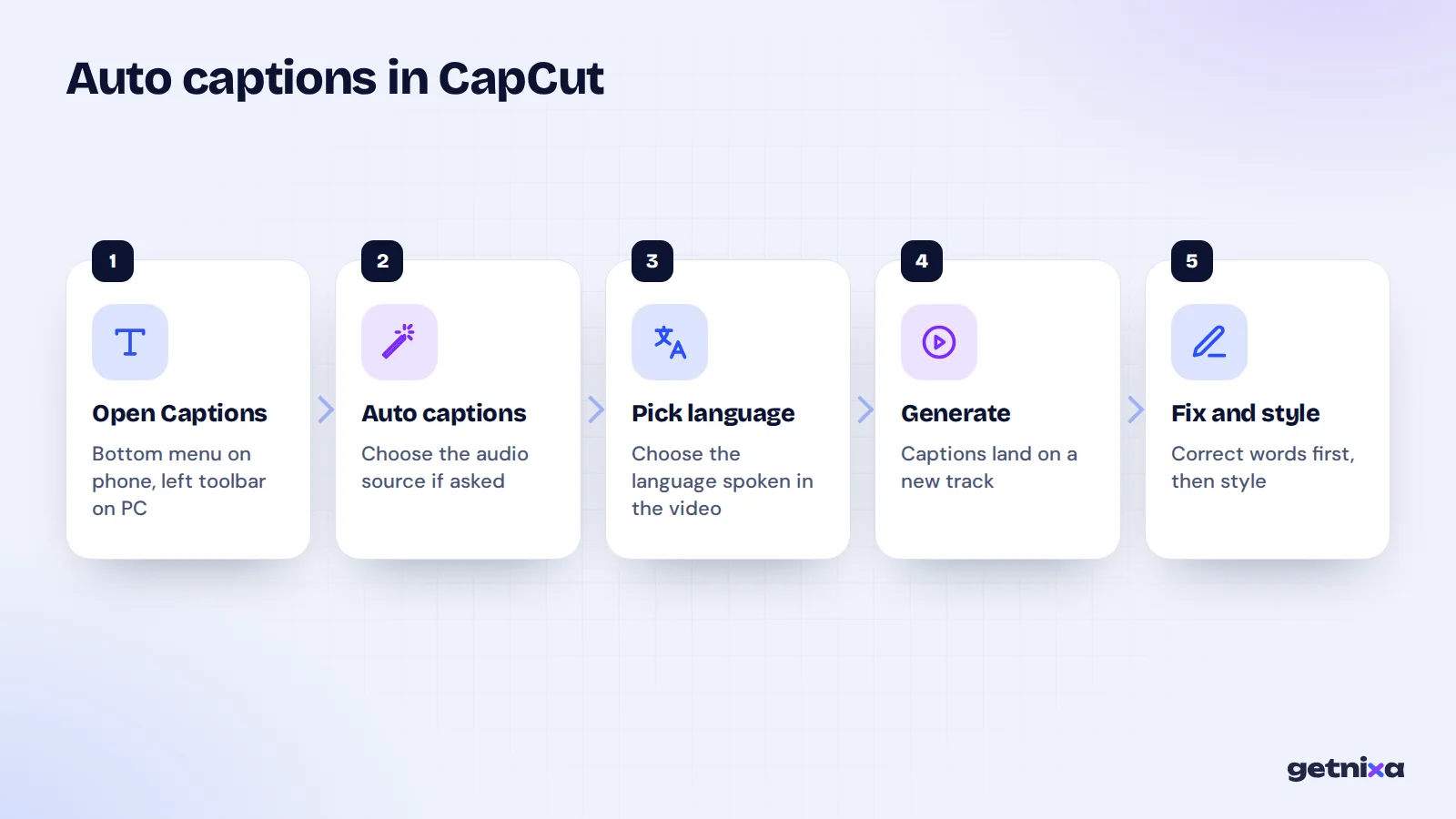
- Start a project. Tap New project, pick your video and tap Add.
- Open Captions. Tap Captions in the bottom menu. In some older versions it is under Text.
- Choose Auto captions. Select the audio source if asked, such as the video’s own sound or a voiceover.
- Pick the language. Choose the language spoken in the video, not the one you want to read.
- Generate. Tap Generate and wait. The captions appear as a new track under your video.
Next, play the video once with sound on and note every wrong word before you start styling.
How to add auto captions in CapCut on desktop
The Windows and Mac app gives you more control, including SRT export. According to CapCut’s help on recognising subtitles, the Captions option sits at the top of the left toolbar, marked with a speech-bubble icon.
- Import your video. Drag the clip onto the timeline.
- Open Captions. Click Captions in the left toolbar. Some versions place Auto captions under the Text tab instead.
- Set source and language. Choose the audio track and the spoken language.
- Click Generate. Some versions label this button Recognise or Create.
- Review on the timeline. Double-click a caption block to open the caption editor and fix text.
On CapCut online (web)
The browser version follows the same path. Open your project, click Captions in the left panel, choose Auto captions, pick the language and click Generate. CapCut’s help notes that the web editor works best in Chrome or Edge.
| Version | Where to find it | Edit captions | Export SRT? |
|---|---|---|---|
| Mobile (Android, iPhone) | Bottom menu: Captions (or Text) | Tap caption, then Edit captions | No, captions burn into the video |
| Desktop (Windows, Mac) | Left toolbar: Captions (or Text tab) | Double-click or right-click a caption | Yes, SRT or TXT |
| Web (browser) | Left panel: Captions | Click caption, then Edit captions | Check your export options |
How do I fix wrong auto captions in CapCut?
Every auto caption tool makes mistakes. The fix is a quick, planned review rather than random tapping. CapCut’s guide to inaccurate captions suggests the same basics on all three versions.
- Open the editor. On mobile, tap a caption and choose Edit captions. On desktop, double-click the caption block.
- Fix the text. Correct names, brand words, numbers and slang line by line.
- Split long lines. Put the playhead at a natural pause and split. On desktop, use Ctrl+B on Windows or Cmd+B on Mac.
- Re-run bad sections. If a whole part is wrong, delete those captions, mute the music track and generate again.
- Watch it twice. Once with sound to check words, once muted to check reading speed.
Fixing Hindi and Hinglish errors
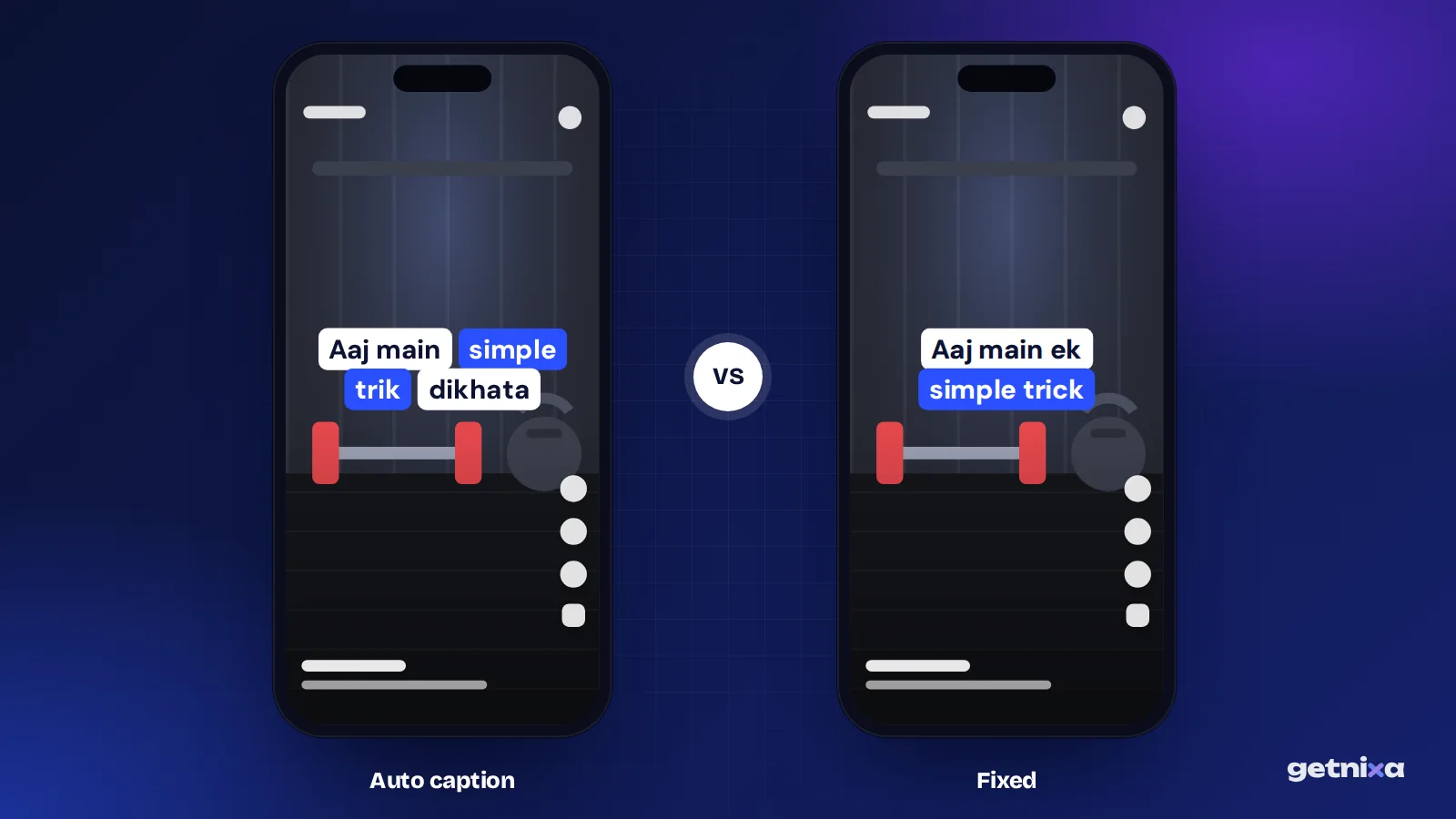
Mixed speech is where auto captions struggle most. Say “aaj main aapko ek simple trick dikhata hoon” and a tool set to English may write nonsense, while one set to Hindi writes it in Devanagari.
- Match the language to the speech. If most words are Hindi, choose Hindi, then fix the English words by hand.
- Decide your script first. Devanagari (आज) and Hinglish in English letters (aaj) need different fixing. Pick one before you edit.
- Keep spelling steady. Write “hai” or “hain” the same way every time, or the captions look careless.
- Watch the fonts. Many caption templates use Latin-only fonts, so Devanagari may show as boxes. Our guide to the best fonts for Reels lists ones that support Hindi.
For a full guide to writing Hindi in English letters, read our post on Hinglish captions.
How to style auto captions in CapCut
Once the words are right, style them. Select one caption and change the font, size, colour and outline. On most versions you can apply the change to all captions at once, which keeps the look consistent.
Tip: Fix the text first and style second. If you style first, every split or edit can create a line that does not match the rest.
Keep captions to 1 or 2 short lines and away from the bottom edge, where Reels and Shorts show buttons and the post caption.
How to export CapCut captions as an SRT file
An SRT file is a plain text file that holds caption lines with start and end times. You need one to upload captions to YouTube or to reuse them in another editor. Our guide on what an SRT file is shows a sample.
On desktop, open the export window and choose the caption export option instead of video export, then pick SRT or TXT. CapCut’s help adds a few cautions:
- Only captions made by auto recognition can be exported this way.
- If the file shows odd characters, convert it to UTF-8. This matters for Hindi text.
- Save to a folder path that uses English characters.
Troubleshooting CapCut auto captions
| Problem | Likely cause | Fix |
|---|---|---|
| Auto captions option missing | Old app version or different menu layout | Update CapCut, then check both Captions and Text |
| Captions are gibberish | Wrong spoken language selected | Delete and generate again with the correct language |
| Many wrong words | Loud music or noise under the voice | Mute music, generate, then turn music back on |
| Captions out of sync | Clips trimmed after generating | Finish your cut first, then generate captions |
| SRT export fails | Captions typed by hand, or old version | Use auto-recognised captions and update the app |
| Hindi shows as boxes | Font has no Devanagari letters | Switch to a font that supports Hindi |
Using CapCut in India: what to know
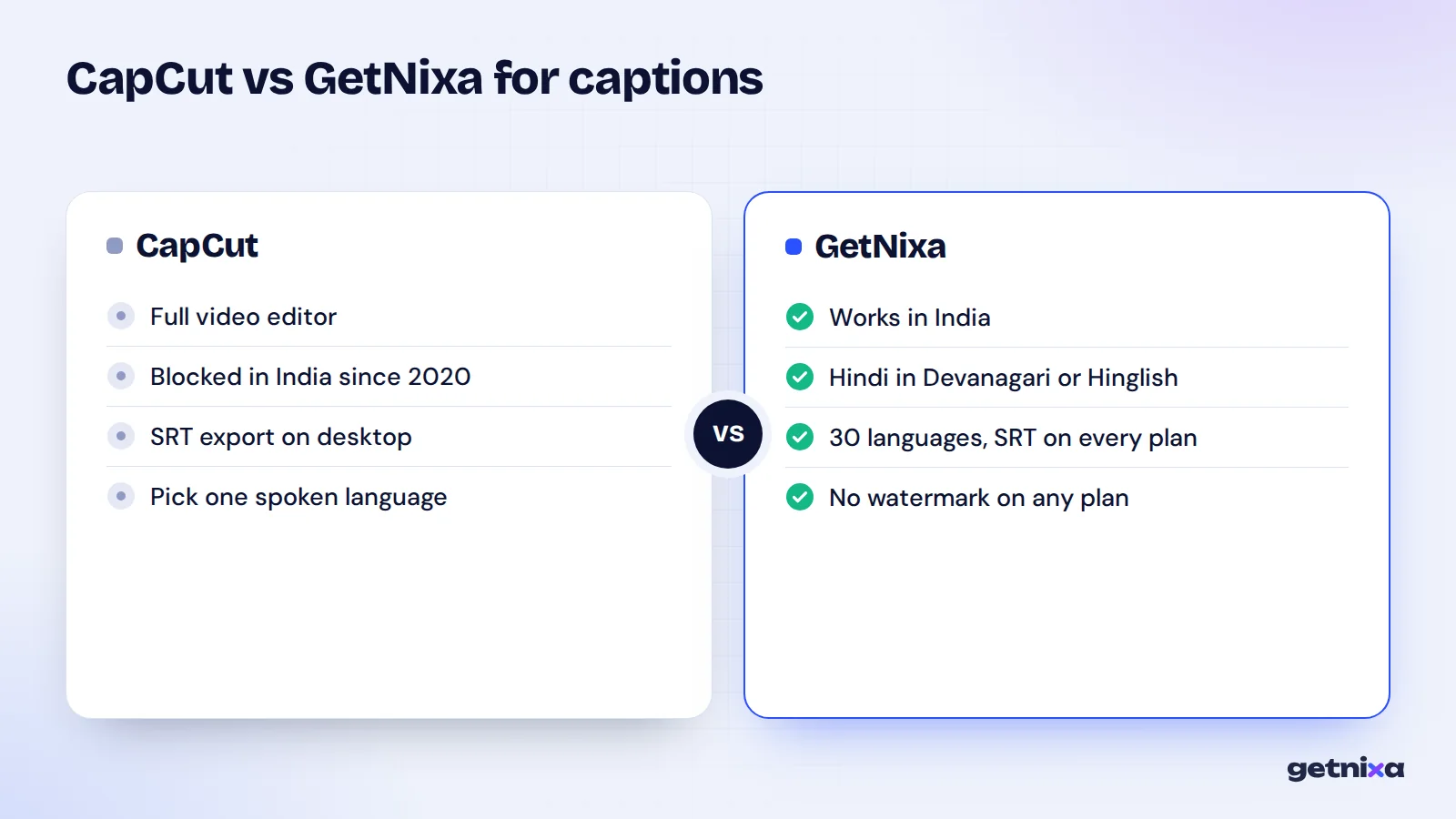
The Indian government blocked CapCut in 2020, in a second round of bans that followed the June 2020 block on TikTok and 58 other apps. It is not listed on Indian app stores. We do not recommend workarounds to get around a government block.
So if you create from India, you need an editor or caption tool that is legally available there. Many Indian creators also need Hindi, Hinglish and regional languages, which is where general tools often fall short.
Another way to add auto captions, including in India
GetNixa is a caption tool that works in a browser and as a desktop app for Mac and Windows. It is available in India and was built first for Hindi, Hinglish and Indian languages. You can see how it compares on our CapCut alternative page.
- Upload the video. Open the web app and add your clip.
- Pick the spoken language. Choose from 30 languages, including Hindi, Hinglish, Tamil, Telugu, Bengali and Marathi.
- Let the AI caption it. Captions are timed to the voice. Hindi can come out in Devanagari or English letters.
- Fix and style. Click any word to correct it, pick one of the templates and change font, colours, position and animation.
- Export. Download an MP4 for Reels, Shorts or WhatsApp, or an SRT file.
There is no watermark on any plan, including Free. Our no-watermark caption generator page explains the plan limits, and the auto caption generator page shows the full feature list.
Which should you use?
- Use CapCut if it is available in your country and you already edit your full video in it.
- Use GetNixa if you are in India, speak Hindi, Hinglish or another Indian language, or want captions without a watermark.
- Use both if you edit elsewhere and only need captions: export a transparent .mov from GetNixa on Pro or Studio and layer it in your editor.
Final thoughts
Adding auto captions in CapCut takes four taps: Captions, Auto captions, language, Generate. The real work is the review, so fix words before style and pick the right language for mixed speech. For more detail on CapCut’s caption editor, see our earlier guide on adding captions in CapCut.
Need auto captions that handle Hindi and Hinglish, and work in India? Upload a video, fix any word with a click and export with no watermark.
Frequently asked questions
Where is the auto captions button in CapCut?
In current versions, look for Captions in the bottom menu on mobile or the left toolbar on desktop, then choose Auto captions. Some versions place Auto captions under the Text menu instead. If you see neither, update the app, because menu layouts change between releases.
Why are my CapCut auto captions wrong?
The most common cause is the wrong spoken language. Background music, several people talking at once and mixed Hindi and English speech also cause errors. Mute the music, set the language that matches most of the speech, generate again, then fix the remaining words by hand.
Can I export CapCut auto captions as an SRT file?
Yes, on the desktop app. In the export window, choose the caption export option instead of video export and select SRT or TXT. CapCut says only auto-recognised captions export this way. If Hindi text looks broken in the file, convert it to UTF-8.
Is CapCut available in India?
No. India blocked CapCut in 2020 and it is not on Indian app stores. Creators in India need a different editor or caption tool. GetNixa is one option that works in India in a browser and on Mac and Windows, with Hindi, Hinglish and Indian languages.
Can CapCut make captions in Hinglish?
CapCut asks you to pick a spoken language, so mixed Hindi and English speech often needs heavy manual fixing. If you want Hindi written in English letters, you may have to retype many lines. Tools that offer Hinglish as its own language option handle this with less editing.

Written by
GetNixa Team
The team behind GetNixa, the AI caption app for Indian creators. We write practical guides on captions, editing and growing on Instagram and YouTube.