How to Translate a YouTube Video to English, Step by Step
How to translate a YouTube video to English with Auto-translate, Chrome Live Translate or your own English SRT, even when the video has no captions.

On this page
- Which method do you need?
- How do I translate a YouTube video to English on a computer?
- On the YouTube phone app
- What if the video has an English audio track?
- How to translate a YouTube video to English with no captions
- Translate the transcript for study notes
- Why the English sometimes comes out wrong (Indian videos)
- How to translate your own YouTube video to English (creators)
- Doing it faster with GetNixa
- Common mistakes and quick fixes
- Wrapping up
- Frequently asked questions
Found a great tutorial in Korean, Tamil or Spanish but cannot follow a word? This guide shows how to translate a YouTube video to English, whether you are just watching or you made the video yourself and want English viewers.
We cover the built-in YouTube options first, then what to do when a video has no captions at all, and finally the creator route with an English subtitle file.
Quick answer: On a computer, click the CC button, then open Settings, Subtitles/CC, Auto-translate and choose English. This only works when the video already has captions. If it has none, turn on Live Caption and Live Translate in Chrome. Creators can upload an English SRT file in YouTube Studio.
Which method do you need?
Start with the right route. It saves a lot of trial and error.
| Your situation | Best method | What you get |
|---|---|---|
| Watching, video has captions | YouTube Auto-translate | English captions on screen |
| Watching, video has an English dub | Settings, then Audio track | English voice |
| Watching, video has no captions | Chrome Live Caption with Live Translate | English captions from the audio |
| Studying the content | Copy the transcript into a translator | Readable English text, not synced |
| You own the video | Upload an English SRT in YouTube Studio | A permanent English track for every viewer |
How do I translate a YouTube video to English on a computer?
YouTube’s auto-translate turns an existing caption track into another language using machine translation. It needs a caption track to start from, either one the creator uploaded or YouTube’s automatic captions.
- Turn captions on. Click the CC icon at the bottom right of the player. If there is no CC icon, skip to the Chrome method below.
- Open the settings gear. Click Settings, then Subtitles/CC.
- Check for real English first. If “English” is already listed, pick it. A creator-made track is usually better than a machine one.
- Choose Auto-translate. If English is not listed, select Auto-translate at the bottom of the list.
- Pick English. The captions switch to English and follow the speech as before.

Tip: Auto-translate is only as good as the caption track under it. If the original captions are already wrong, the English will be worse. So check a few lines of the source captions before you trust the translation.
On the YouTube phone app
The phone app works the same way, through the player menu. Tap the video, open the settings or more menu, tap Captions, then pick English or Auto-translate if it appears. Menu names move around between app versions, so look for “Captions” or “Subtitles/CC”.
If Auto-translate is missing on your phone, try the same video on a computer browser. The desktop player often shows more caption options.
What if the video has an English audio track?
Some channels now add dubbed audio in other languages. According to YouTube’s help page on preferred languages, you can switch from the player’s Settings menu by choosing Audio track and then your language. If English is listed there, you hear the video in English instead of reading it.
Only some videos offer extra audio tracks. If the option is missing, the channel has not added one.
How to translate a YouTube video to English with no captions
Auto-translate fails on videos with no caption track. This happens with music, old uploads, poor audio, or videos where several languages mix. YouTube’s automatic captioning help page lists these as common reasons captions are not available.
For these, use Chrome on a computer. Chrome’s Live Caption turns any audio playing in the browser into captions, and Live Translate converts those captions into another language.
- Open Chrome settings. Click More (the three dots), then Settings, then Accessibility. On Linux, also open Captions.
- Turn on Live Caption. Switch the toggle on.
- Add the spoken language. Next to Manage languages, choose Add languages and pick the language of the video, then set it as the preferred caption language.
- Turn on Live Translate. Switch it on and set “Translate to” as English.
- Play the video. English captions appear on screen as the audio plays.
Google’s Chrome captions help page explains that Live Caption runs on your device, but Live Translate sends the captions to Google for translation. It also lists the languages Live Caption can understand. Hindi is on that list, but many Indian languages are not, so check before you rely on it.
Note: These steps are for Chrome on a computer. Live Caption does not save the captions or attach them to the video.
Translate the transcript for study notes
For lectures, recipes or long tutorials, reading can be easier than watching. Many videos have a transcript you can open from the description area with “Show transcript”. Copy a section, paste it into a translator such as Google Translate, and read the English version alongside the video.
This gives you clean study notes. But the English text is not synced to the video, so you lose timing. It also depends on a transcript existing, which needs captions in the first place.
Why the English sometimes comes out wrong (Indian videos)
Machine translation struggles most with the way many Indian creators talk. Here is what goes wrong, with a fix for each.
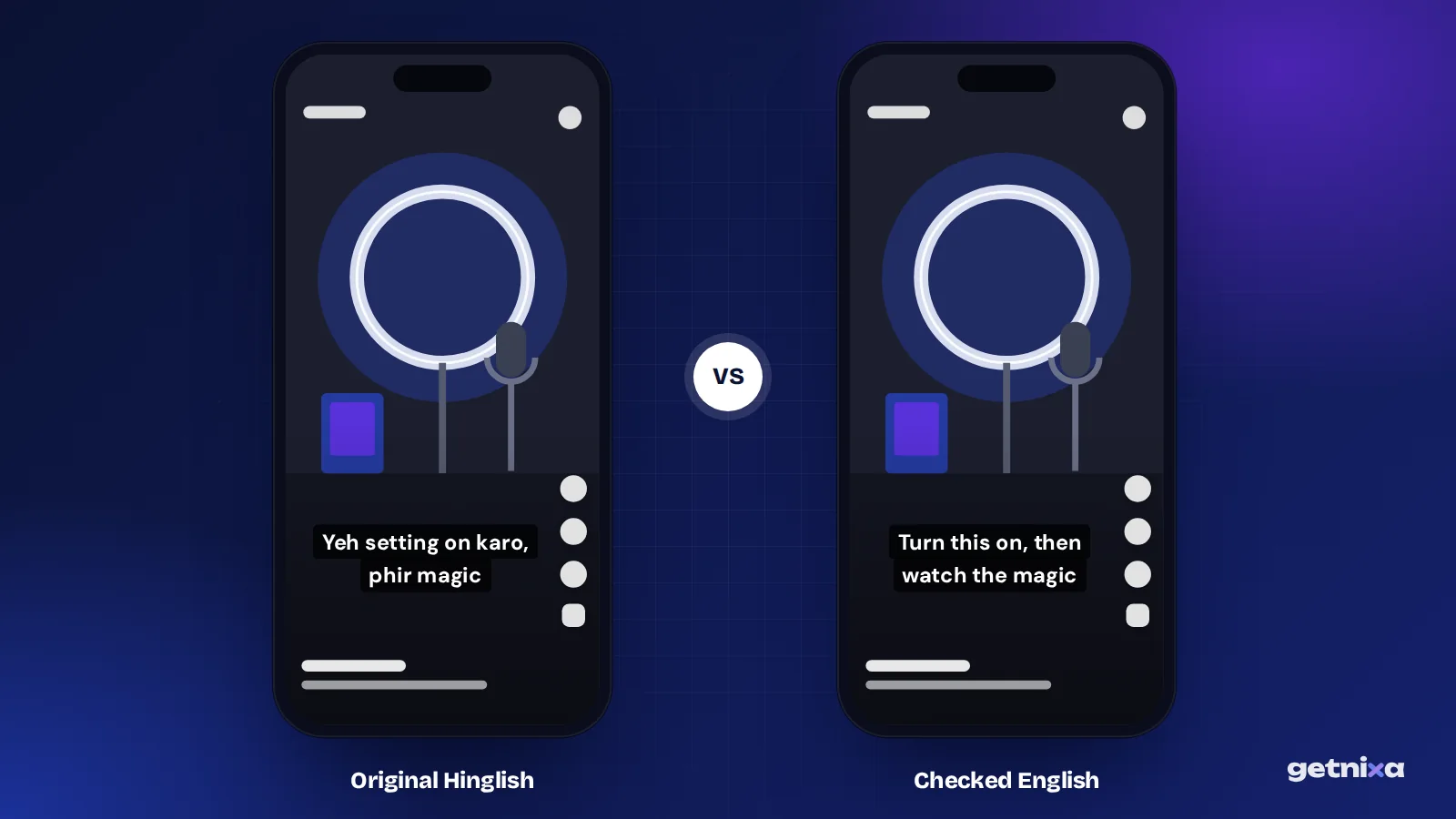
- Hinglish speech. A line like “Yeh setting on karo, phir magic dekho” mixes two languages. Auto captions set to Hindi may mangle the English words, so the translation breaks too.
- Script confusion. Hindi captions in English letters are often not detected as Hindi. The translator may treat them as broken English.
- Regional words and names. Dish names, place names and slang get translated literally. “Pav bhaji” should stay “pav bhaji”.
- Fast speech and music. Background songs and quick talking lower caption quality, which lowers translation quality.
As a viewer, you cannot fix this. As a creator, you can, by giving YouTube a clean, human-checked English track. That is the next section.
How to translate your own YouTube video to English (creators)
If you post in Hindi, Tamil, Marathi or any other language, an English subtitle track opens your video to many more viewers. The most reliable way is an English SRT file, which is a plain text caption file with timings. Our guide on what an SRT file is shows the format.
- Get captions in the spoken language. Use YouTube’s auto captions, type them, or use an auto caption tool.
- Translate and check the text. Keep the timing lines, change only the words. Read every line for names and slang.
- Open Subtitles in YouTube Studio. Pick the video, click Add language, choose English, then click Add under Subtitles.
- Upload the file. Choose Upload file, then With timing, pick your English SRT and save.
Viewers who pick English in the CC menu now see your checked translation, not a machine guess. For more on YouTube captions in general, see how to add subtitles to a YouTube video.
Doing it faster with GetNixa
GetNixa is one way to handle steps 1 and 2 together. You upload the video, pick the spoken language from 30 options (including Hindi, Hinglish, Tamil, Telugu and Bengali), and ask for English captions. Any of those languages can be translated to English captions.

Then click or double-click any word to fix it, and export an SRT file, which is included on every plan. For Shorts, you can also burn styled English captions into an MP4 with no watermark. Our English subtitle translator and YouTube subtitle generator pages have the details. If you only need the words as text, try video to text.
Working with clips saved on your phone instead? Read our guide on turning any clip into English subtitles.
Common mistakes and quick fixes
- Auto-translate is greyed out or missing. The video has no caption track. Use Chrome Live Translate instead.
- English captions are out of sync. Pause and replay. If it stays off, the source captions are badly timed.
- Your uploaded SRT shows odd symbols. Save the file as UTF-8 and upload again.
- Viewers still see the Hindi track. They need to pick English in the CC menu. Captions do not switch on their own for everyone.
- Dub sounds robotic. Switch Audio track back to the original and use English captions instead.
Wrapping up
For viewers, Auto-translate handles most videos with captions, and Chrome covers the rest. For creators, a checked English SRT file is the clean, lasting fix, and it means every viewer gets the same accurate words.
Turn your Hindi or regional language videos into English captions you can trust. Upload, fix any word, and export an English SRT for YouTube.
Frequently asked questions
Why is there no Auto-translate option on a video?
Auto-translate needs a caption track to work from. If the creator did not upload captions and YouTube could not make automatic ones, because of music, poor audio, long silence or mixed languages, there is nothing to translate. In that case, use Chrome’s Live Caption with Live Translate on a computer.
Does changing the YouTube app language translate videos?
No. The app language only changes YouTube’s menus and buttons. Videos stay in their spoken language. To get English, pick English or Auto-translate in the captions menu, or choose an English audio track if the creator has added one in the player settings.
Can YouTube translate Hindi videos into English?
Yes, if the video has Hindi captions, Auto-translate can show them in English. YouTube supports automatic captions for Hindi. But Hinglish speech and slang often confuse the captions, so the English can be rough. Creator-uploaded English subtitles are usually much more accurate than the machine version.
Is it legal to translate someone else’s YouTube video?
Watching with auto-translated captions for yourself is fine. Re-uploading someone else’s video with your own translation is a different matter, because the video belongs to its creator. If you want to share a translation publicly, ask the creator first, or only work on videos you own or have permission to use.
How accurate is YouTube auto-translate?
It is good enough to follow the general meaning of clear speech. Accuracy drops with accents, fast talking, background music, jokes and mixed-language speech, because errors in the original captions carry into the English. For anything important, such as a tutorial you will follow step by step, check key lines yourself.

Written by
GetNixa Team
The team behind GetNixa, the AI caption app for Indian creators. We write practical guides on captions, editing and growing on Instagram and YouTube.